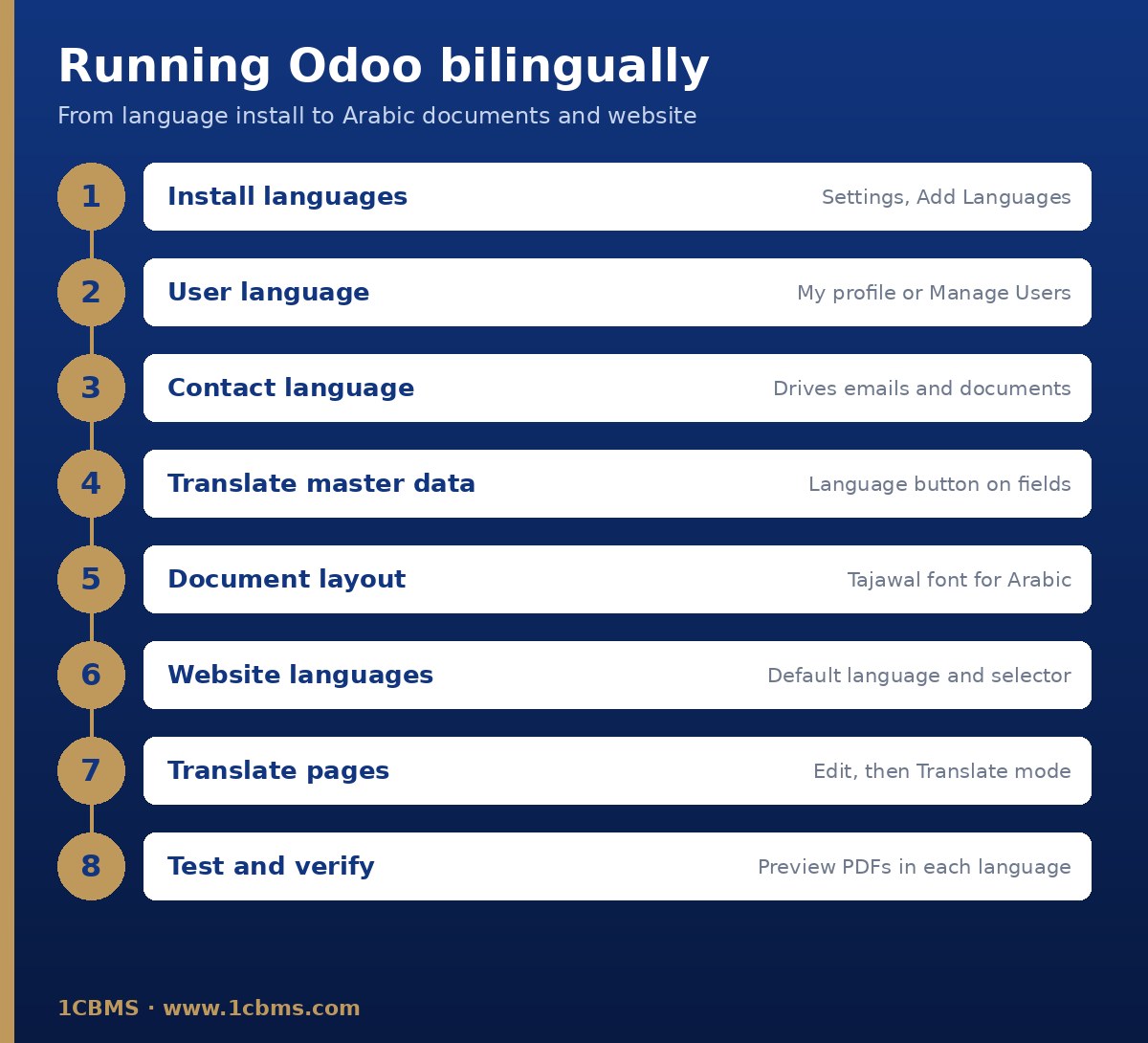
Yes, this is a standard setup in Odoo. Languages work at three levels: the user interface, the partner's documents, and the translated data itself.
Install and assign languages
- Install Arabic from the Settings app using Add Languages in the Languages section.
- Set each user's language in Settings, Manage Users, Preferences tab, or let users change it from My profile. Staff can work in Arabic while managers stay in English.
- On each customer contact, set the Language field. Odoo sends emails and documents to that contact in the selected language.
Fix the mixed-language invoices
Arabic headings with English product names usually mean the product names were never translated. Installing Arabic translates Odoo's own labels, not your data. Open each product, click the language button next to the name and enter the Arabic name, or prepare translations in bulk and test the import on a copy first.
Fix the layout
- Go to Settings, Companies section, Configure Document Layout, and choose the Tajawal font, which the documentation lists as supporting Arabic and Latin scripts.
- Review the address, tagline and footer texts, then preview a confirmed invoice in both languages.
If you want Arabic and English side by side on the same invoice, that needs a report customization, for example with the Studio report editor in Enterprise. The Gulf Cooperation Council Format option described in Odoo's Gulf localization docs may not be available for an Iraqi company, so check before relying on it.
Test everything in a duplicate database before applying it to your live system.