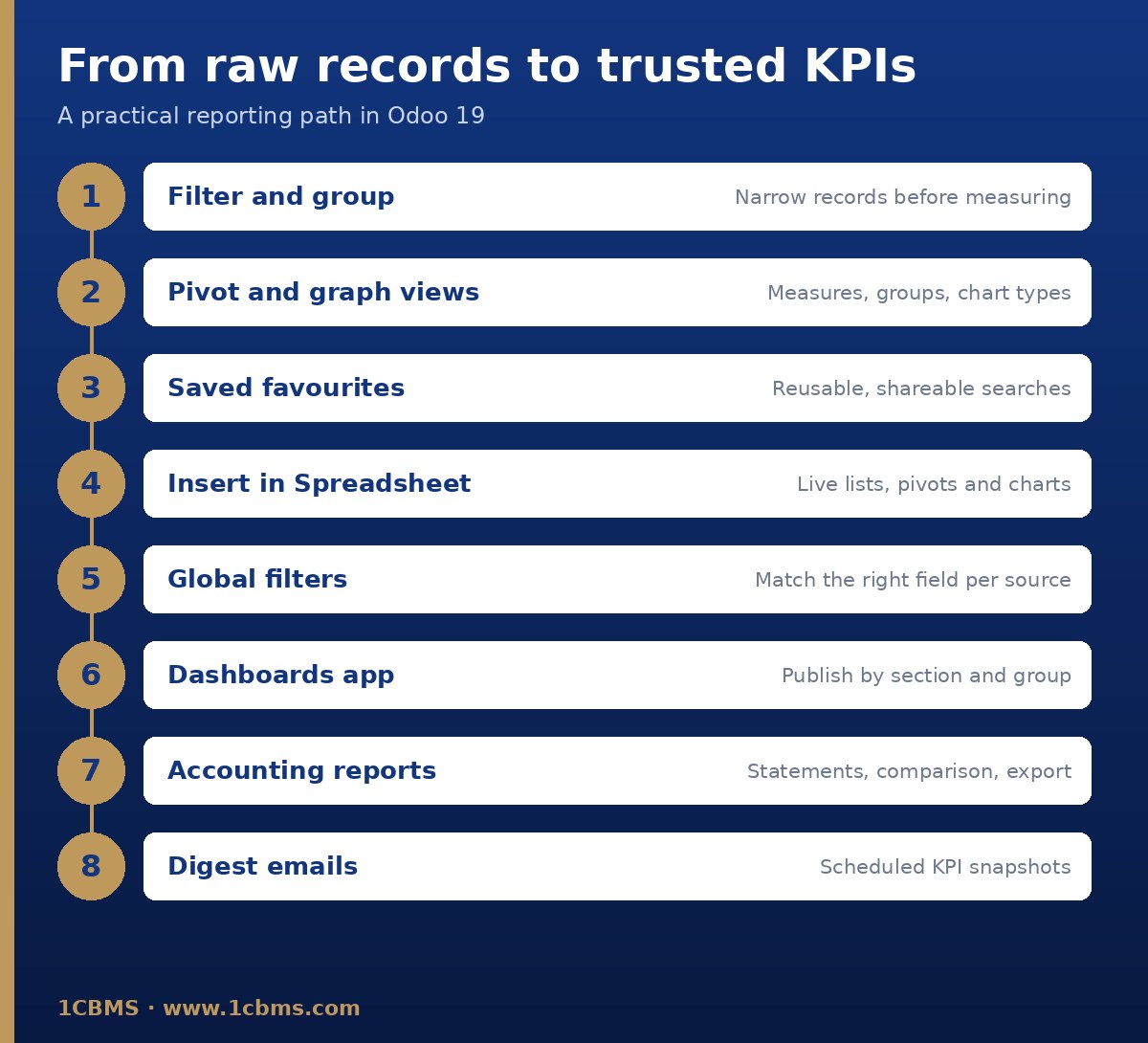
The usual approach is to build the content in Odoo Spreadsheet and then publish it through the Dashboards app.
Build the data
- Open Sales Analysis in pivot view, set your measures and group by product category, then click Insert in Spreadsheet.
- Switch to graph view, group by month, and insert the chart into the same spreadsheet.
- Do not keep a fixed month filter in the source views if you plan to filter by month with a global filter.
Add global filters
- Open the spreadsheet's Filters panel and create a Date filter, then check field matching so it uses the correct date field for every data source.
- Optionally add a Relation filter on salesperson; on the User model you can use Automatically filter on the current user.
Publish
- In the Dashboards app, add the spreadsheet to a section, assign the user groups that should see it, and switch on Is Published.
Own-figures visibility does not come from the dashboard itself. Each user sees only the records their access rights and record rules allow, so a salesperson with own-documents-only sales access will see only their own sales.
Test with a salesperson user in a test database before going live, and duplicate any standard dashboard rather than editing it, because standard dashboards are reinstalled at upgrades.