
Most Odoo databases already contain the answers managers are asking for. The difficulty is rarely missing data; it is knowing which view, filter or report turns that data into a reliable number. This guide walks through the reporting toolkit in Odoo 19, from the everyday list, pivot and graph views up to spreadsheet-based dashboards, accounting reports and scheduled KPI emails.
A note on sources: this article follows Odoo's official Odoo 19 documentation. Menus, labels and options can vary with your installed apps, edition, localization and access rights, so confirm each step in a test database before rolling it out to users.
Start with the standard reporting views
Most Odoo apps include a Reporting menu with analysis reports built on the same three building blocks. Learning them once pays off in every app, from Sales to Inventory to Helpdesk.
- List view shows individual records as rows and is the best starting point when you need to check details or export them.
- Pivot view aggregates and breaks down data by rows and columns, much like a spreadsheet pivot table.
- Graph view visualizes the same data as a bar, line or pie chart; bar and line charts can be stacked once two groups are applied, and line charts can be made cumulative.
In pivot and graph views, the Measures menu decides what is being calculated. Only numerical fields such as integer, decimal and monetary fields can be used as measures, and Count simply counts the filtered records. Pivot view allows several measures at once, which is useful for comparing, for example, untaxed amount and quantity side by side.
In pivot view you can add row or column groups with the plus and minus buttons next to the Total headers, flip the axes to swap rows and columns, sort by clicking a measure label, and download the table as an .xlsx file.
Filter and group before you measure
The order matters: first narrow the records, then choose measures. A pivot table on the wrong set of records will always give the wrong answer, however well it is laid out.
- Use the search bar to type a value and pick the field it should match; this works like a contains search.
- Open the search options and choose preconfigured Filters. Filters in the same group match any selected condition, while filters from different groups must all match.
- Use Add Custom Filter to build rules from a field, an operator and a value, with the option to match any or all rules and to include archived records.
- Use Group By to cluster records without removing any, and Add Custom Group to group by any field on the model. Each additional group subdivides the previous one.
Many reports open with a default filter, such as a recent date range on Sales Analysis. Before trusting a figure, read the active filters in the search bar and remove or change any you did not intend.
Save repeatable analysis as favourites
Once a filter and grouping combination answers a recurring question, save it instead of rebuilding it every week. Open the search options, choose Save current search, give it a clear name and click Save.
Tick Default filter if the saved search should open automatically for that view. Favourites are private by default; to share one, edit it and select users in the Shared with field. The edit icon on a favourite also lets you change its name, default status or conditions, and the actions menu lets you archive or delete it.
Name favourites after the business question they answer, for example Open quotations this quarter by salesperson, rather than after the technical filters they contain. This makes shared favourites much easier for colleagues to reuse.
For quick personal monitoring, the Dashboards app also offers My Dashboard. From the Actions cog next to a view's name, choose Dashboard, then Add to my Dashboard. The added view stays interactive, but its filters and grouping cannot be changed afterwards; edit the original view and add it again instead.
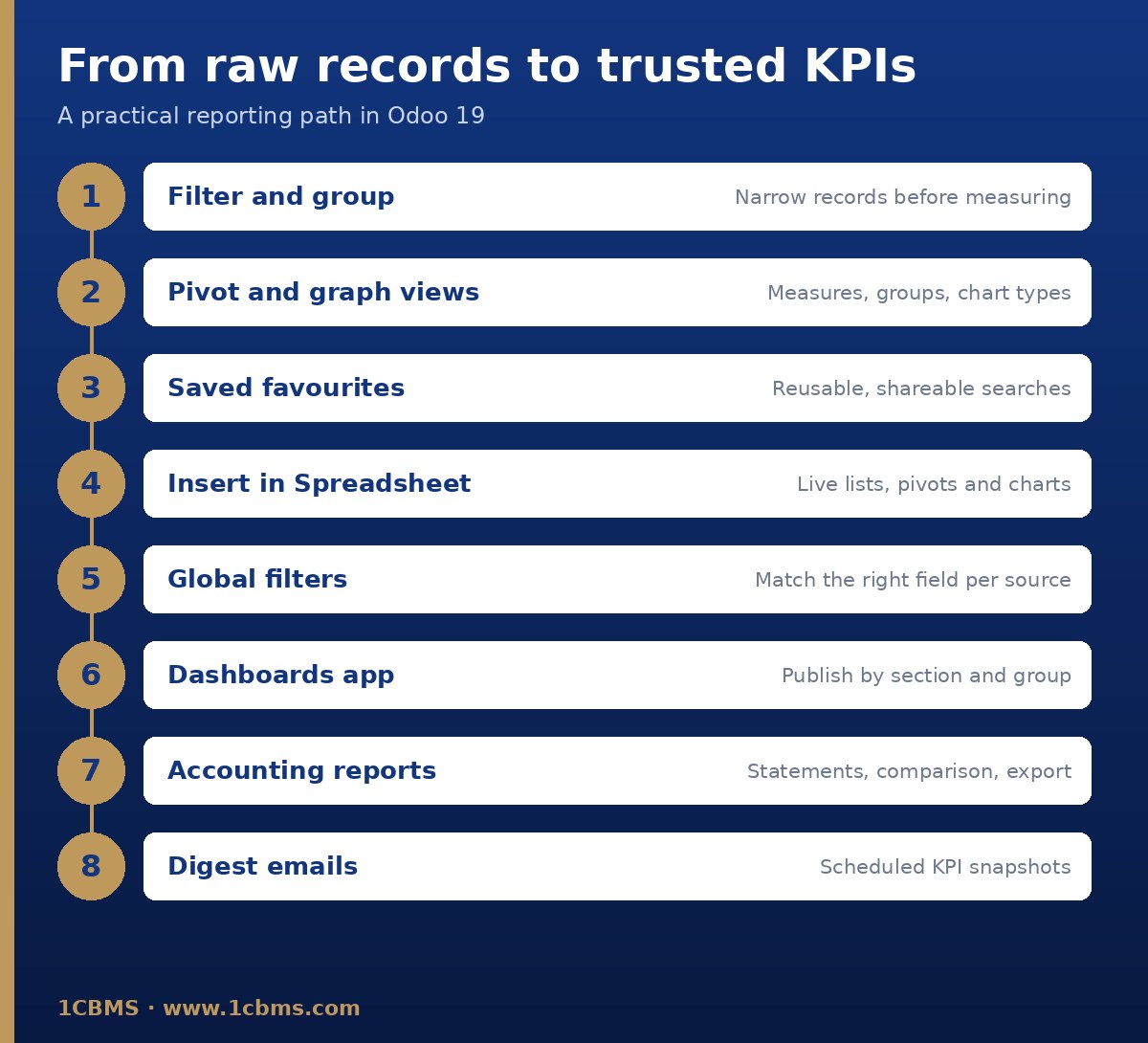
Build live reports in Odoo Spreadsheet
When a single view is not enough, Odoo Spreadsheet lets you combine lists, pivot tables and charts from different apps in one workbook that stays connected to your database. Spreadsheet is part of the Documents app, which is an Enterprise feature; Community users should rely on views, favourites and exports.
From a list view, open the Actions cog and choose Spreadsheet, then Insert list in spreadsheet. From a pivot or graph view, click Insert in Spreadsheet at the top left. In the dialog, adjust the name, and the number of records for lists, then choose where the data should go.
Each insertion creates a data source with its own ID, such as List #1 or Pivot #1, listed under the Data menu. Linked data refreshes every time the spreadsheet is opened or the page is reloaded, and Data then Refresh all data updates it manually.
From any linked cell you can drill back into Odoo: right-click a list row and choose See record, right-click a pivot cell and choose See records, or click a chart data point.
Housekeeping matters in spreadsheets too. Deleting an inserted list or pivot does not delete its data source, so remove unused sources from their properties panel; the Data menu shows a warning next to sources that are no longer used.
Turn spreadsheets into Dashboards
The Dashboards app presents spreadsheet-based dashboards with live data, organized into sections in the left panel. Standard dashboards are provided depending on the apps you have installed, and users can mark their most used dashboards as favourites with the star icon.
- Prepare and insert: write down the business questions, refine the source views, insert the lists, pivot tables and charts, then add formulas and custom metrics.
- Lay out and filter: use the first sheet as the front page with clear headings and conditional formatting, and add global filters by date, relation, text, yes/no, selection or numeric values.
- Publish: convert the spreadsheet into a dashboard, place it in a section, assign user groups and companies, and switch on Is Published.
Global filters only work correctly when field matching points to the right field for every data source. A sales order has several date fields, so decide deliberately whether a date filter should use the order date, the delivery date or another field.
Do not edit standard dashboards directly. Odoo reinstalls them at each version upgrade, so changes are lost; duplicate the dashboard first and customize the copy. It also helps to switch off Is Published while you rework a live dashboard.
Use the accounting reports for financial figures
For financial statements, use the reports under the Accounting app's Reporting menu rather than building your own from journal items. They include the Balance Sheet, Profit and Loss, Cash Flow Statement, General Ledger, Aged Receivable, Aged Payable, Tax Report and an Executive Summary with performance and position ratios.
Expand lines with the arrow on the left to drill down, use the Comparison menu to compare periods, export with the PDF button or choose XLSX from the arrow beside it, and use Annotate on an expanded line to view its details.
With developer mode, Accounting, Configuration, Accounting Reports lets you create report variants with lines and expressions based on engines such as Odoo Domain, Prefix of Account Codes, Tax Tags or Aggregate Other Formulas. This is powerful but technical, so involve your accountant and test every figure against the General Ledger.
Design KPIs people will act on
A dashboard full of numbers is not the same as a set of KPIs. Before building anything, agree what each indicator means and who owns it.
- Give each KPI a written definition: which records are included, which date field is used, and which measure is calculated.
- Keep indicators few, tied to real decisions, and paired with context such as a comparison period or target.
- Use the same definition everywhere; if a sales figure on a dashboard differs from Sales Analysis, users will stop trusting both.
Schedule and share reports
Odoo offers several ways to get figures in front of people without asking them to open reports.
- Digest emails, configured from the Emails section of Settings, send periodic KPI snapshots daily, weekly, monthly or quarterly to selected recipients. You choose the KPIs per digest and can create several digests for different audiences.
- Spreadsheets in Documents are shared through Owner, Editor and Viewer roles. Internal users see only the data their access rights and record rules allow.
- External users cannot open dynamic spreadsheets. Use File, Share, Freeze and share to create a read-only snapshot in which Odoo formulas become fixed values.
- Dashboards can be shared as a frozen snapshot through the Share button, which is useful for external parties or internal users without dashboard access.
Remember that dashboard visibility and data visibility are separate. A user may be allowed to open a dashboard but still see only the records their permissions allow, which is usually exactly what you want, but should be tested before go-live.
Common mistakes to avoid
- Trusting a figure without checking the default filters in the search bar.
- Using the wrong date field, especially in global filter field matching.
- Building the same conditions into an inserted pivot and into a global filter, which makes the dashboard filters behave unexpectedly.
- Customizing standard dashboards instead of duplicates, then losing changes at the next upgrade.
- Rebuilding financial statements from raw journal items instead of using and, if needed, customizing the accounting reports.
How 1CBMS can help
1CBMS designs Odoo 19 reporting for companies in Egypt and Iraq, from defining KPIs with management to building favourites, spreadsheet dashboards, digest emails and accounting report variants that match local practice. We test every figure against source records and train your team to maintain the reports themselves. Contact us at www.1cbms.com to review your current reporting.