
Running several legal entities, a head office with branches, or a business that buys and sells in more than one currency is common for companies in Egypt, Iraq and the wider region. Odoo 19 handles all of these inside a single database, but the choices you make on day one, such as company versus branch, shared versus company-specific records, and how currencies are rated, are difficult to undo later.
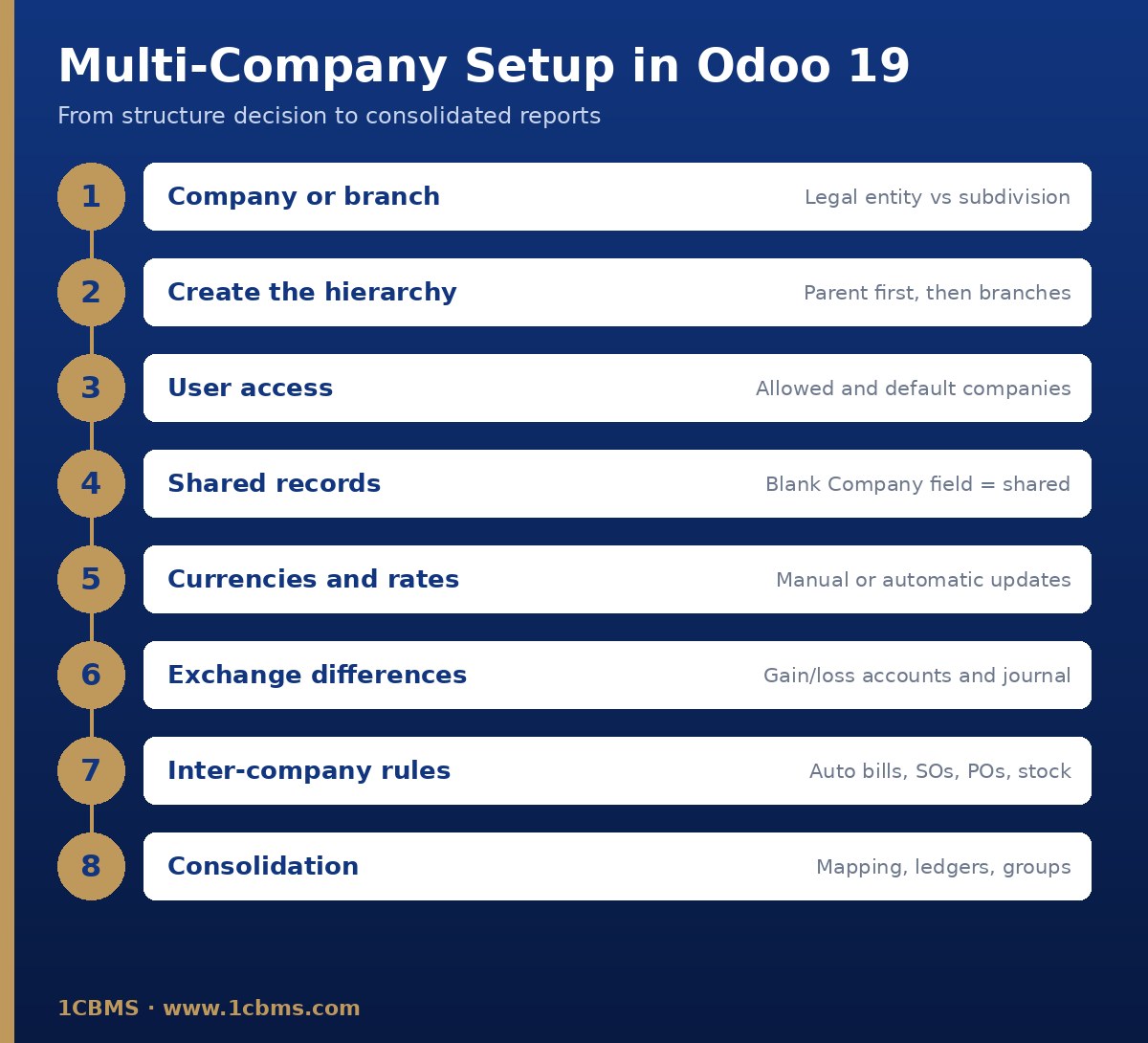
This guide walks through the setup in a practical order: deciding the structure, creating companies and branches, controlling user access and shared data, configuring currencies and exchange differences, automating inter-company documents, and producing a consolidated view.
A note on sources: this article follows Odoo's official documentation for version 19.0. Menu labels and options can vary with your edition, installed apps and fiscal localization, so always confirm each step in a test or duplicate database before applying it to live data.
Step 1: Decide between a company and a branch
In Odoo, a company is an individual business entity with its own legal identity, financial records and operational settings. A branch is a subdivision of a company, such as a regional office, that operates under a common parent company. Odoo's guidance is explicit: independent subsidiaries should be created as additional companies, not branches.
Under Odoo's branch model, the parent company's chart of accounts, main currency and taxes apply to all of its branches. The parent also manages a common fiscal period, so its lock and closing dates apply across all branches, although a branch may set earlier lock dates. Branches can still have their own dedicated journals, address and logo.
- Choose a separate company when the entity is a separate legal person, has its own tax registration, needs its own chart of accounts, or reports in a different main currency.
- Choose a branch when the unit is part of the same legal entity, shares the head office's accounts and taxes, and you mainly need separate journals, addresses, access and reporting.
- Choose neither when you only need to track a product line or activity separately; Odoo's own use cases point to analytic accounting and multiple warehouses as a lighter alternative.
The fiscal localization package is set on the parent company, and each company and branch is configured with its own legal information. Depending on the structure, branches may share the parent's VAT number or have their own, which results in a common or separate tax return.
Plan the full hierarchy before you create anything. Odoo warns that a company defined as a parent cannot later be converted into a branch, because doing so may cause access rights issues, and that the parent company should always be created first. Also note that adding a branch enables multi-company functions, which can affect your Odoo subscription plan, so check this with your Odoo account manager.
Step 2: Create companies and branches
To create a company, open the Settings app, go to the Companies section and click Manage Companies, or use Settings, Users & Companies, Companies. Click New and fill in the company details.
- Company name, address and contact details such as phone, email and website.
- Tax ID, plus the Company ID if the registry number differs from the tax number, and the LEI where relevant.
- Currency, which becomes the company's main currency for accounting.
- Email domain, color and logo, which help users recognize the active company and keep documents correctly branded.
To add a branch, open the parent company's form, go to the Branches tab and click Add a line. A branch can have its own branches, which lets you build a multi-level structure. Remember that apart from the accounting settings inherited from the parent, configurations such as pricelists, loyalty programs and inventory locations must be set per branch.
Most general settings apply to every company in the database. Settings marked as company-specific carry a building icon in the Settings app, so switch to the right company before changing them. Odoo does not automatically create warehouses for companies added after the initial database setup, so create them manually for each new company that handles stock.
Step 3: Control user access and the company selector
On each user form, the Access Rights tab lets you set the Companies the user may access and a single Default Company that is selected at login. What the user can do within those companies still depends on their assigned access rights. Odoo cautions that incorrect multi-company access settings can cause inconsistent behavior, so this should be handled by experienced administrators.
Users switch context with the company selector in the top-right corner. Ticking several companies makes their data visible together, while the highlighted company is the active one in which new records are created. With branches, selecting the parent automatically includes its branches, whereas selecting a branch connects to that branch only.
In accounting, users can view records and reports from several companies at once but can only work on one company's accounting at a time. Train users to check the active company before posting an invoice, bill or payment.
Step 4: Decide which records are shared and which are company-specific
Records such as products, contacts and equipment carry a Company field. Leave it blank to share the record with all companies, or set a company to restrict it. In a multi-company database, new products and contacts are shared by default.
Transactional documents behave differently. Quotations, invoices and vendor bills belong to the company that created them, are only visible when that company is selected, and have the active company filled in automatically.
Some fields inside a shared record are still company-specific. Odoo's example is the product: the sales price and internal reference are common to all companies, but the cost is stored per company, which allows each entity to keep its own cost structure.
- Share the product catalogue and customer master data if the group sells the same items to the same customers.
- Restrict records when an entity must not see another entity's suppliers, prices or customers.
- Agree on naming and ownership rules for shared master data, because one change affects every company that uses the record.
Step 5: Configure currencies, rates and exchange differences
Each company's main currency defaults from its country and can be changed in the Accounting settings, in the Currencies section. Other currencies are enabled from Accounting, Configuration, Currencies by toggling them Active. Every transaction is recorded in the company's main currency; for foreign-currency transactions Odoo stores both the company-currency amount and the transaction-currency amount.
Rates can be maintained manually by adding a line in the Rates tab of the currency. Once a second currency is active, an Automatic Currency Rates option appears in the Accounting settings. You can update rates on demand, set the interval to daily, weekly or monthly, and choose the web service that provides the rates. Pick a source that matches the rates your auditors and tax authority expect, and document that choice.
- Set a currency on a journal when that journal, for example a USD bank account, should only handle transactions in that currency.
- Set a currency on an account only when every entry on it must be in that currency; for foreign bank accounts Odoo recommends leaving the account currency blank for flexibility and relying on the journal currency.
- On invoices, bills and payments, select the currency directly on the document or in the payment registration window.
Realized exchange differences are posted automatically when items are reconciled, for example when a customer pays a foreign-currency invoice at a different rate. Define the exchange difference journal and the gain and loss accounts in the Default Accounts section of the Accounting settings, and review these entries through the journal items view.
For period-end, the Unrealized Currencies report under Accounting, Review lists open foreign-currency amounts on the balance sheet. You can apply Odoo's rates or set rates manually for the report, then click Adjustment Entry to book the unrealized gains or losses with an automatic reversal on the date you choose.
Step 6: Automate inter-company transactions
When companies in the same database trade with each other, the Inter-Company Transactions feature can generate the counterpart documents. Select the relevant company in the company selector, open the Settings app, go to the Companies section, enable Inter-Company Transactions and save. The setting is made per company, so repeat it for each entity that should generate counterparts.
- Create Vendor Bills: when one company confirms an invoice or credit note for another company, a bill or refund is created in that company.
- Create Sales Orders: when a purchase order is confirmed for another company, a draft quotation is created in the supplying company.
- Create Purchase Orders: when a sales order is confirmed for another company, a draft request for quotation is created using the warehouse chosen in Use Warehouse.
- Synchronize Stock Moves: deliveries and receipts between the companies are kept in sync.
The Validated option confirms the generated records automatically and applies to all of the options above. Products must be shared between the companies involved, and Odoo stresses that fiscal positions, taxes and localizations must be configured correctly for the counterpart documents to be accurate. With developer mode active, the same options appear in an Inter-Company Transactions tab on each company record.
Test a full cycle in a duplicate database: sales order, generated purchase order, delivery, receipt, invoice and generated bill, then check that taxes, prices, currencies and the intercompany receivable and payable balances agree in both companies.
Step 7: Build a consolidated reporting approach
Consolidation combines the books of legally separate companies into one view. Branches are not consolidated in the same way; the parent company already sees its branches' financial reports in one place, while each branch sees only its own data.
- Account mapping: on each account, the Mapping tab lets you enter the equivalent code per company, so that similar accounts from different charts can be combined and grouped by account code in reports.
- Account merging: accounts can optionally be merged into one shared account across selected companies, and unmerged later, although merged chatter history stays merged.
- Multi-ledgers: each company keeps its regular ledger, while the consolidating company uses a multi-ledger that also includes the consolidation adjustment journals excluded from the regular ledgers.
- Company selector: select the consolidating company as active and the other companies as visible to see journal items from the consolidating company's perspective.
- Horizontal groups: created in developer mode, they show the consolidated balance sheet or profit and loss with each company's contribution side by side.
For companies with different currencies, Odoo handles the translation: equity accounts use the historical rate, profit and loss accounts use the weighted average rate, and other balance sheet accounts use the closing rate. The rates used are those of the company currently selected, so maintain rates in the consolidating company. Remember to pick the multi-ledger in the report, since reports default to the statutory view.
Community edition note: Odoo distinguishes the Invoicing app from the full Accounting app, which adds standard financial reports, bank reconciliation and more. The reporting and consolidation tools above belong to the Accounting app, so confirm what your edition and installed apps provide before promising a consolidated pack to management.
How 1CBMS can help
1CBMS designs and implements Odoo 19 multi-company and branch structures for groups operating across Egypt, Iraq and the region, from the initial company-versus-branch decision and chart of accounts mapping to currency rate policies, inter-company automation and consolidated management reporting, all tested in a staging database before go-live. Contact us at www.1cbms.com to plan your structure with an experienced Odoo consultant.