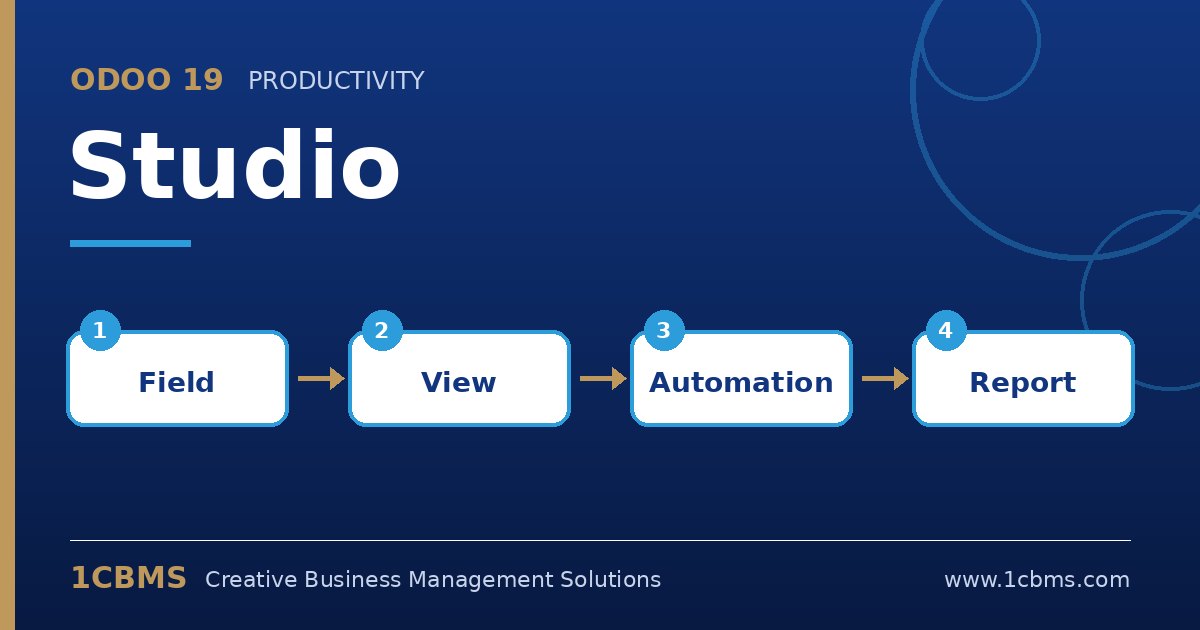
Adding a field to the form and showing it on the PDF are two separate steps in Studio, so you are halfway there.
- Open a quotation, launch Studio from the toolbar icon, and confirm both fields exist on the form view (drag them from New Fields if not).
- In Studio, open the Reports tab and select the quotation or order report used for printing.
- Click where you want the information in the report editor, then insert a field block and choose your new fields from the sale order.
- Add a label text next to each field, adjust layout and close Studio to save.
- Print a test quotation, check both languages if you print in Arabic and English, and verify alignment.
Test the report in a staging database first, and keep a note of report changes because they should be re-checked after future upgrades.