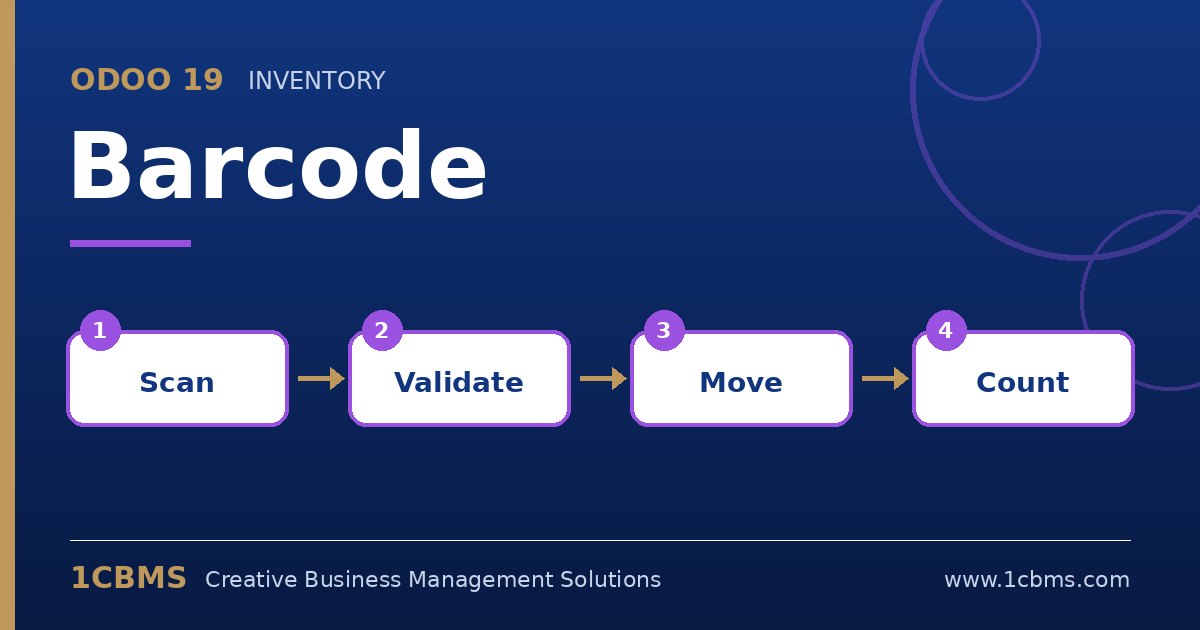
Odoo 19 can both store barcodes on products and print labels in several formats, including ZPL for Zebra-compatible thermal printers. The main steps are to give each product a barcode and then use the label printing option.
- Open each product and fill the Barcode field, or import barcodes in bulk from a spreadsheet using the product list.
- From the product list, select the products and use Print Labels from the actions menu, then choose the format, the quantity and ZPL if you print on a thermal printer.
- To print labels for incoming goods, open the validated receipt and use the label printing option there, so the quantity of labels matches the received quantity.
- If you want direct printing without a download, connect the printer through an IoT Box, which is an Enterprise option.
- Scan a printed label in the Barcode app to confirm the code is read correctly.
Also print location labels for shelves, so operators can scan both the location and the product during put-away.