
Arabic is rarely the only language in an Egyptian or Iraqi business. Warehouse teams and cashiers often prefer Arabic screens, finance managers may work in English, customers expect Arabic invoices, and foreign suppliers need English purchase orders. Odoo 19 handles all of this inside a single database, as long as the languages are planned and configured deliberately.
A note on sources: this article follows Odoo's official documentation for version 19.0. Menu names and options can differ slightly between editions, localizations and updates, so confirm every step in a test or duplicate database before changing your live system.
Plan your language model before you configure
Before touching settings, decide which language is the main working language of the database and which languages each group of users, customers and vendors will receive. The database language is chosen when the database is created; additional languages are added later.
- Internal users: who works in Arabic, who works in English, and whether managers need to switch between both.
- Customers and vendors: which partners receive Arabic documents and which receive English ones.
- Master data: which product names, descriptions and categories must exist in both languages.
- Printed documents: whether invoices must be Arabic only, English only, or bilingual on the same page.
- Website: which language is the default for visitors and which languages appear in the language selector.
Writing these decisions down early avoids the most common problem in bilingual projects: master data created in one language only, discovered months later when the first Arabic invoice is printed with English product names.
Step 1: Add Arabic and English to the database
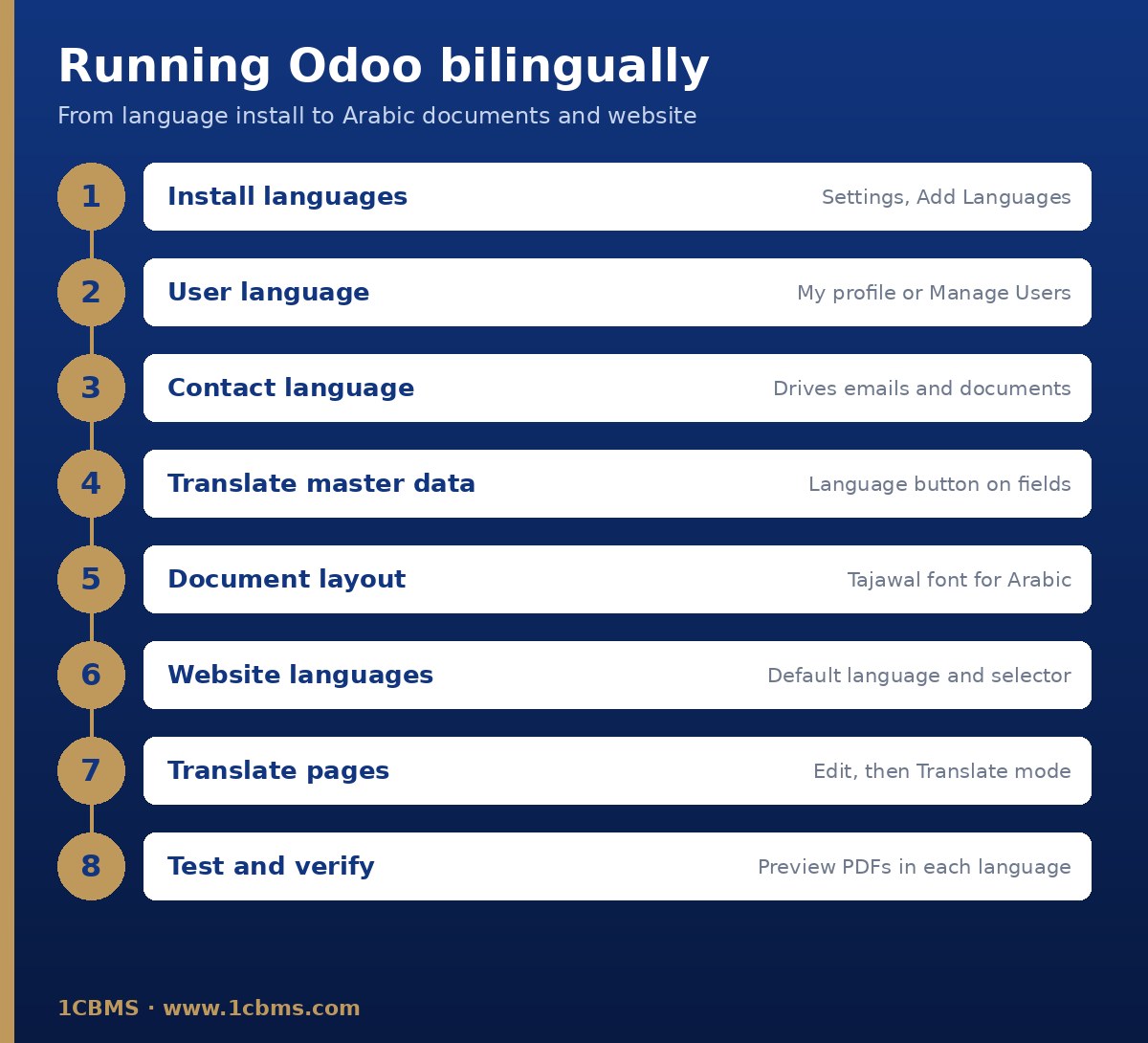
According to Odoo's documentation, additional languages can be added in two ways. Either open the Settings app and click Add Languages in the Languages section, or click your profile icon in the upper-right corner, open My profile, and click the globe icon next to the Language field. Select the languages you need from the dropdown and click Add.
For most companies in Egypt and Iraq this means having both Arabic and English installed, whichever one was chosen when the database was created. Installing a language loads Odoo's own translations of menus, fields and standard texts for that language.
For developers and advanced administrators, Odoo's developer documentation also refers to the Settings, Translations menu, with a Languages list and an Import / Export option for translation files. This is mainly used to manage translations of custom modules.
Step 2: Set languages for users and contacts
Each user chooses their own interface language. A user can click the profile icon, open My profile, and select a Language from the dropdown. An administrator can change it for someone else by going to the Settings app, clicking Manage Users, opening the user, and selecting an installed language in the Preferences tab. The documentation notes that emails and documents are then sent to that user in the selected language.
Arabic is a right-to-left language. Once a user switches to Arabic, Odoo presents the interface in right-to-left direction. The official documentation does not have a dedicated page on this behaviour, so review your most-used screens, any custom views and any customized reports in Arabic during testing.
In rich-text fields such as internal notes, descriptions and email templates, the Odoo editor includes a Switch direction command that changes the direction of the text. This is useful when an Arabic paragraph and an English paragraph sit in the same field.
Contacts carry their own language too. On the contact form, the Language field defines the language of the contact, and the documentation states that emails and documents sent to that contact are translated into the selected language. For an Iraqi customer who expects Arabic invoices, set the contact's language to Arabic; for a foreign supplier, set it to English.
Step 3: Translate master data and templates
Installing Arabic translates Odoo's standard interface, but it cannot translate your own data. Product names, product descriptions, categories, payment terms and similar records must be translated by your team. The website documentation confirms that some elements, such as product names, can be translated from the backend.
On translatable fields, Odoo shows a language button with the initials of the current language, such as EN. Clicking it opens a window listing the installed languages so you can enter each translation. The documentation describes this button for email templates and notes that it only appears when multiple languages are installed and the user has the required rights.
- Translate product names and sales descriptions first, because they print on quotations, invoices and delivery slips.
- Keep a consistent Arabic glossary for units, product families and technical terms so different users do not translate the same item differently.
- Review payment terms and other texts that appear on customer documents.
- For bulk work, export the products to a spreadsheet, prepare the translations, and test the import on a copy of the database first.
Email templates are translated automatically for all installed languages, according to the documentation, so changes are usually unnecessary. If you do need to adjust a template translation, activate developer mode, edit the template and use the language button. The documentation warns that incorrect edits, for example broken syntax, can leave the template blank, so test after every change.
The rich-text editor also offers a Translate with AI option that translates content into the installed languages. Treat any automatic translation as a first draft and have an Arabic speaker review legal, financial and customer-facing wording.
For chatter messages, Odoo can integrate Google Translate. After creating an API key in the Google API console, enter it in the Settings app, Discuss section, in the Message Translation field. Users can then translate a chatter message into their own language from the message menu. The documentation notes that the Google Translate API requires an active Google billing account.
Step 4: Bilingual invoices and report layouts
Odoo prints documents in the language of the partner. For most Egyptian and Iraqi companies, the simplest reliable approach is to set the language on each customer and vendor and to make sure all product and term translations exist, so each partner receives a complete document in their own language.
The visual layout is defined per company. In the Settings app, in the Companies section, click Configure Document Layout. There you choose the layout style, background, colours, logo, address, tagline, footer and paper format. Among the available fonts, the documentation lists Tajawal as supporting both Arabic and Latin scripts, which makes it a sensible choice for bilingual documents.
Write the tagline, footer and address text carefully, since they appear on every external report. Then confirm a test invoice and use Preview to check how it looks in Arabic and in English before sending anything to customers.
Odoo's localization documentation for Gulf countries such as Saudi Arabia, the United Arab Emirates and Oman describes a Gulf Cooperation Council Format option, found in the Accounting settings under Customer Invoices and in the Point of Sale settings under Bills & Receipts, which adds an Arabic translation next to the partner's language on billing documents. Egypt and Iraq are not GCC countries, so check in your own database whether this option is available with your localization before relying on it.
If you need side-by-side Arabic and English text on the same invoice and the standard options do not cover it, the report can be customized. In Odoo Enterprise, Studio includes a PDF report editor for adjusting report content; in Odoo Community, Studio is not available and the change has to be made by a developer in a custom module. Either way, test the result in both languages.
Egyptian companies using the Egyptian e-invoicing integration with the Egyptian Tax Authority should note that the official Egypt localization page focuses on ETA codes, branches, customers and products rather than on language. Keep the bilingual layout work separate from the e-invoicing setup and test both together in the ETA preproduction environment, as the documentation recommends for e-invoicing.
Dates, numbers and calendars
Date and number display in Odoo follows the format of the user's language. The Studio documentation, for example, explains that the numeric date mode uses the format set on the current language. If your team prefers a specific date order or separator, review the language settings in a test database before changing them for everyone.
Be careful when importing data. Odoo tries to detect date formats in imported files, but the documentation warns that some formats are ambiguous, for example whether 01-03-2016 is the first of March or the third of January. When importing a CSV file, check the detected Date Format in the formatting options and, when in doubt, use the ISO 8601 format, such as 1981-07-24. Odoo also detects thousand and decimal separators automatically, but an unknown currency symbol can cause the import to fail.
The official documentation does not describe a Hijri calendar option for standard date fields. Treat Gregorian dates as the system standard, and if a Hijri date is required on a specific printed document, plan it as a reviewed customization rather than assuming it is built in.
Step 5: Build a multilingual website
For the website, install the languages on the database first. Then go to Website, Configuration, Settings, use Install new languages in the General section if needed, select the languages in the Languages field and save. In the same section, the Default field sets the language used when a visitor's browser language is not available.
Once a second language is added, a language selector appears in the website header and footer. In the website editor you can change its style and label, choosing text, flag, code or combinations, or hide the header selector. Building blocks can also be shown or hidden conditionally based on the visitor's language, which is useful for Arabic-only promotions.
To translate a page, switch the website to the target language and click Edit, then Translate. Text highlighted in green is already translated; text highlighted in yellow is not. You can translate all yellow text automatically and then correct it by hand. Layout changes must be made in the default language, because translation mode only allows editing translatable text.
- Translate image descriptions and tooltips through the Translate Attribute box in translation mode.
- Add Arabic and English meta keywords in Website, Site, Optimize SEO, selecting the language for each keyword.
- Product and category names are translated in the URL while the structure stays the same, so translate product names before promoting the Arabic shop.
- Odoo adds hreflang and x-default tags to multilingual pages automatically, which helps search engines serve the right language.
Odoo's developer documentation adds an important warning: modifying the source-language version of a page can break the link to existing translations, which may then need to be redone. Finalize the default-language content before investing heavily in translation.
Best practices for Egyptian and Iraqi companies
- Decide the default language at database creation and do not change your mind halfway through the project.
- Set the language on every user and every partner during data migration, not afterwards.
- Make product name translation part of the product creation procedure, with a named owner.
- Choose a font that supports Arabic, such as Tajawal, in the document layout before designing any custom report.
- Test every customer-facing document, including quotations, invoices, credit notes, delivery slips and receipts, in both languages.
- Review automatic and AI translations with a native Arabic speaker, especially for legal and tax wording.
- Keep customizations in a test database first and repeat the bilingual tests after every Odoo update.
How 1CBMS can help
1CBMS implements Odoo 19 for companies in Egypt and Iraq and works in Arabic and English every day. We help you plan the language model, configure users, partners and document layouts, translate and clean your master data, design bilingual invoices and reports, and launch an Arabic and English website, all tested in a staging database before go-live. Contact us through www.1cbms.com to discuss your project.