
Every Odoo implementation eventually reaches the same moment: the configuration is ready, users are trained, and the business needs its real data inside the new system. Data migration is where many projects lose time, because errors in master data or opening balances surface later as wrong reports, duplicate contacts and unreconciled accounts.
This guide explains how to plan and execute a migration into Odoo 19 Enterprise, from master data such as customers, vendors, products and the chart of accounts, through the Import feature, to opening balances for receivables, payables, the general ledger and stock. It closes with a cut-over sequence and the checks that confirm your figures are right.
A note on sources: this article follows Odoo's official documentation for version 19. Menu names and options can vary with your installed apps, localization and access rights, so always confirm each step in a test database before applying it to your live system.
Step 1: Plan the migration scope
Start by deciding what will move and what will stay in the legacy system as an archive. Odoo's accounting onboarding guidance notes that companies starting fresh validate the fiscal localization, import master data and configure accounting settings, while companies moving from legacy software also import opening entries.
The timing of the switch matters. Odoo's documentation recommends transitioning at the end of a fiscal year, because it minimizes the data to transfer, and discourages switching in the middle of a tax period.
Build a migration inventory listing each data object, its source system, its owner on the business side, the volume of records and the target Odoo model. Typical objects are:
- Setup records: currencies, journals, fiscal positions, taxes and payment terms
- Master data: product categories, products, attributes and variants, contacts and their bank accounts
- Chart of accounts adjustments to the localization's standard chart
- Opening balances: the trial balance, open customer invoices and credit notes, open vendor bills and refunds, bank and cash balances, and an opening inventory count
Agree early on what will not be migrated. Historical closed transactions usually stay in the old system for reference, which keeps the migration smaller and the opening position easier to reconcile.
Step 2: Prepare the chart of accounts and fiscal localization
The country chosen when the database or company is created determines the fiscal localization package, which adds a standard chart of accounts configured for that country. You can verify the package in the Accounting settings under Fiscal Localization.
Treat this as the first gate in your plan. The documentation warns that the fiscal localization cannot be changed once a journal entry has been posted, so confirm it before any accounting data is loaded.
Map your legacy accounts to the Odoo chart rather than replacing it. Where an Odoo account matches one of yours, edit its name or code. Where no match exists, create the account manually or import it. Account codes must be unique within a chart.
Do not delete standard accounts or change their account type, because default accounts and settings depend on them. Rename and recode them instead. Each account's type also drives reports and fiscal year closing, so choose types carefully for any new accounts.
Step 3: Load master data in dependency order
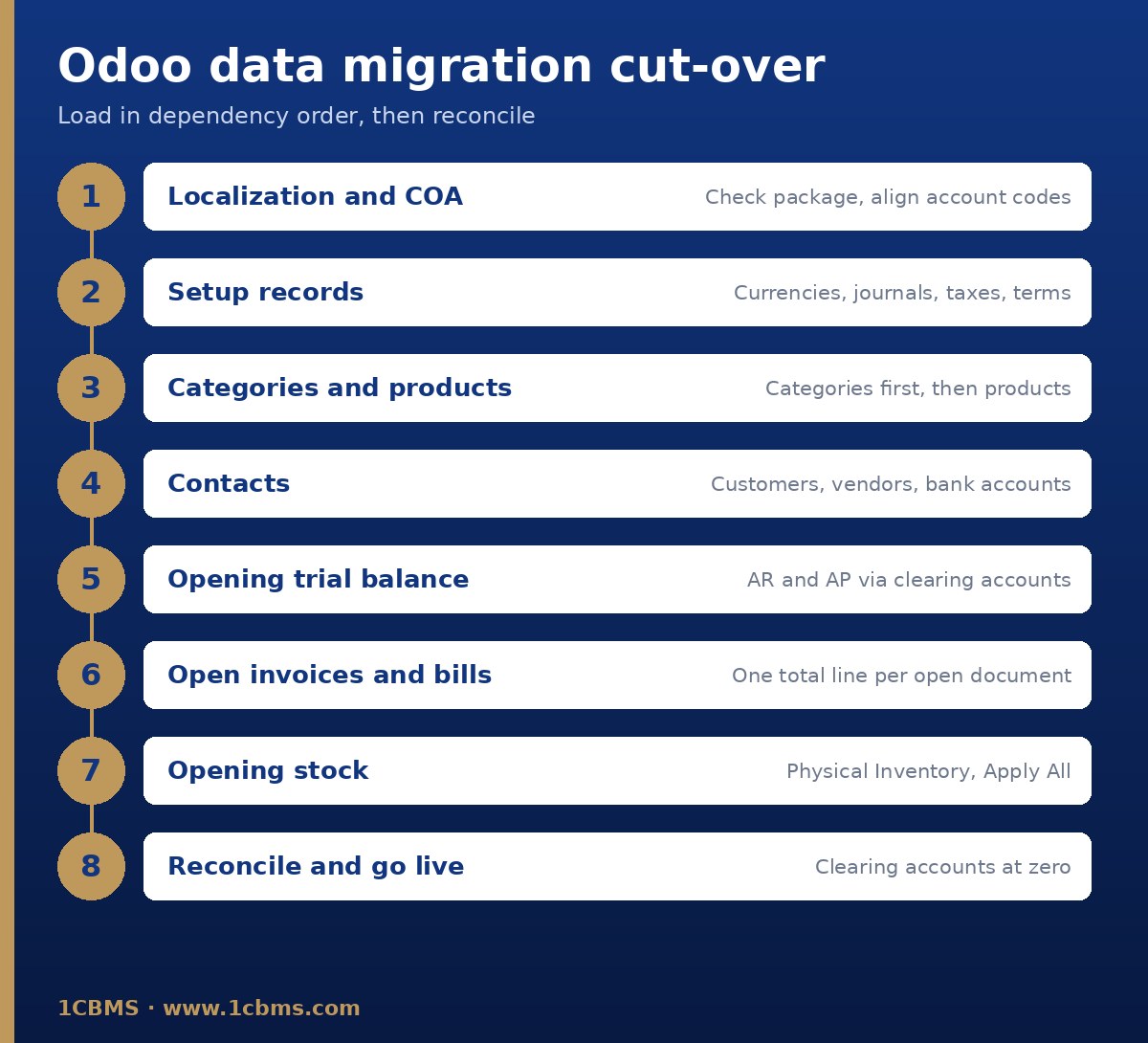
Odoo resolves relations at import time, so a record can only point to records that already exist. The accounting onboarding documentation sets out this order: currencies, journals, fiscal positions, taxes, payment terms, product categories, products, contact bank accounts and contacts.
For products, import product categories first so each product's category can be set during the import. If you use variants, create the attributes before the products. Odoo's product import guidance describes a separate attributes sheet with columns for the attribute, display type, variant creation mode and values.
Be careful with variant creation mode. The documentation states it cannot be changed once the attribute has been used on at least one product. Commas cannot appear in attribute or value names, and multiple values are separated by a comma with no space.
For contacts, review the receivable account, payable account and payment terms, because these drive how each customer and vendor posts in accounting.
Step 4: Use import templates and the Import feature
Odoo can import data into most business objects from Excel (XLSX) or CSV files. Open the list view of the object, click the gear icon for actions and choose Import records. Many objects, such as contacts, products and journal entries, offer a downloadable import template with the column mapping already prepared.
Working with a template is the safest approach. You can add, remove and reorder columns, but keep the identifying column. If no template exists, export a few existing records first to get exact field names.
The import screen follows a clear sequence. Upload the data file, adjust the formatting options if it is a CSV (separator, encoding, date format and thousands separator), check that each file column maps to the correct Odoo field and map any unrecognized columns manually, click Test to validate the data without saving it, and click Import only once the test passes.
Take Odoo's warning seriously: imports are permanent and cannot be undone. Filtering records by their creation or last-modified date can help you find what an import affected, but this is a recovery aid, not an undo button.
Pay attention to formats. Odoo recommends ISO 8601 dates such as 1981-07-24, real date cells in Excel, and a correctly selected date format for CSV files. Tab-separated files are not detected automatically, and unknown currency symbols in number fields can stop an import. For large files, the documentation advises splitting the data into smaller batches to avoid timeouts, and all variants of the same product must be in the same batch.
Step 5: Master external IDs and relational fields
The External ID is the most important column in any migration file. It gives each record a unique identifier, and importing a file with External IDs updates the matching records instead of creating duplicates. This makes it possible to correct and re-import the same file safely.
Build External IDs from your legacy keys and prefix them by object, for example a customer prefix and a vendor prefix, so they stay unique across tables. Once loaded, never change or remove them, because the documentation warns this can create duplicates on the next import.
Relational fields follow specific rules:
- Many2one fields, such as a product's category or a contact's country, can be filled with the related record's name, but duplicate names link to the first match, so a column ending in External ID is more reliable
- Many2many fields, such as contact tags, take several values separated by commas with no spaces
- One2many fields, such as order lines, put the first line on the parent's row and each further line on its own row with the parent columns left empty
Two more details avoid surprises. Columns missing from the file receive default values, but columns that are present with empty cells overwrite those defaults with blanks. And when updating existing data, export it with the import-compatible option ticked so the External ID is included and only importable fields are exported.
Step 6: Cleanse data and run test loads
Cleansing should happen before the data reaches Odoo. Remove duplicate customers and vendors, standardize names, phone numbers and addresses, close or archive obsolete products, and confirm that every reference in a file, such as a category, tax or payment term, exists in the target database.
In Odoo 19 Enterprise, the Data Cleaning app adds deduplication rules that group similar records for merging, and field cleaning rules such as trimming spaces, setting text case and formatting phone numbers. According to the documentation, deduplication and field cleaning are Enterprise features, while data recycling is also available in Community. Community users should therefore complete most cleansing in their spreadsheets before import.
Run at least one full rehearsal in a test or staging database using the final files and the final load order. Record every error, fix it at the source, and repeat until the load completes cleanly. Use the rehearsal to time each step so the real cut-over can be scheduled realistically.
Step 7: Load opening balances
Odoo's documentation describes four opening positions to prepare: account balances, open customer invoices and credit notes, open vendor bills and refunds, and an opening inventory count.
For the general ledger, import the opening trial balance as a journal entry using the import template for miscellaneous operations, available from the journal entries list. Before importing, replace the receivable and payable balances with two clearing accounts, AR Clearing and AP Clearing, both with the Current Assets type. The trial balance must balance, and it imports as a draft that you review and then post.
Next, import open customer invoices and vendor bills with their templates from the customer invoices and vendor bills lists, with credit notes and refunds imported from their own lists. The documentation sets clear rules: the partner must exactly match an existing contact, the document number must not already exist and its year must match the invoice or bill date, you use either a due date or payment terms but not both, the line account is the receivable or payable clearing account, and the unit price is the amount still due after any partial payments.
Odoo recommends importing each open invoice or bill as a single total line rather than line by line. Imported documents arrive as drafts, which you confirm in bulk from the Actions menu. As they post, the clearing accounts are offset by the real receivable and payable balances.
For stock, use Inventory, Operations, Physical Inventory and import counted quantities with the inventory adjustments template. Then click Apply All, enter an inventory reason and counting date, and update the quantities. Lots and serial numbers appear on separate lines and can be selected or recorded during the count.
Coordinate stock and accounting carefully. The documentation states that inventory accounts in the trial balance must match the inventory value, calculated as product cost multiplied by quantity. Check how your product category valuation settings post stock adjustments, and agree with your accountant how inventory value enters the ledger so it is not counted twice.
For bank and cash, set the starting balance on each journal's first statement to the real balance before the first transaction in Odoo. If you use bank synchronization, delete any transactions dated before the trial balance date.
Step 8: Follow a controlled cut-over and reconcile
On cut-over day, freeze transactions in the legacy system, extract final balances, load the files in the rehearsed order and record each step in a sign-off log. A typical sequence is localization check, setup records, categories and products, contacts, opening trial balance, open invoices and bills, opening stock and bank balances.
Reconciliation is how you prove the migration worked. Compare record counts per object between source and Odoo, then check these balances:
- The Odoo trial balance equals the legacy closing trial balance account by account
- The receivable and payable totals equal the sum of imported open invoices and bills
- The AR Clearing and AP Clearing accounts are fully balanced
- Stock quantities by product and location match the count, and stock value agrees with the inventory accounts
- Each bank and cash journal starts from the actual statement balance
Once the clearing accounts are confirmed as balanced, Odoo's guidance is to change their account type to Off-Balance Sheet so they no longer appear in the main reports. Keep the reconciliation workbook and sign-offs as part of your project records.
How 1CBMS can help
1CBMS plans and runs Odoo 19 data migrations for companies in Egypt and Iraq, from source-system extraction and cleansing to External ID design, rehearsal loads, opening balances and signed-off reconciliation. Contact us at www.1cbms.com to plan a migration that lets your team go live with numbers they trust.