
Every Odoo major version is supported for three years, and each new version brings features, fixes and better performance. Staying on an old version makes the eventual upgrade harder, because the gap between versions keeps growing. This guide explains how an upgrade actually works, step by step, for every hosting type, and what a company should prepare before moving its production database.
A note on sources: the steps below follow Odoo's official upgrade documentation and developer guides. Commands, menus and service conditions can change between versions, so always confirm the current instructions in the official documentation for your target version before you start.
What an upgrade is, and what it is not
An upgrade moves your existing database, with all its data, from an older version of Odoo to a newer supported version. Odoo's upgrade service converts the data structure; your team then tests the result before the real switch.
The upgrade service does not cover downgrading to an older version, switching between Community and Enterprise, changing the hosting type, or migrating from another ERP. Each of those is a separate project.
How often you must upgrade, by hosting type
- Odoo Online: a major-version upgrade is mandatory every two years. Odoo notifies you a few weeks in advance, runs a silent test upgrade and, if you take no action by the due date, upgrades the database automatically.
- Odoo.sh: after the three years of support for your version, you have two more years to complete the upgrade, and the platform notifies you when it becomes required.
- On-premise: you can stay on the same version indefinitely, but this is not recommended. The smaller the version gap, the easier and cheaper the upgrade.
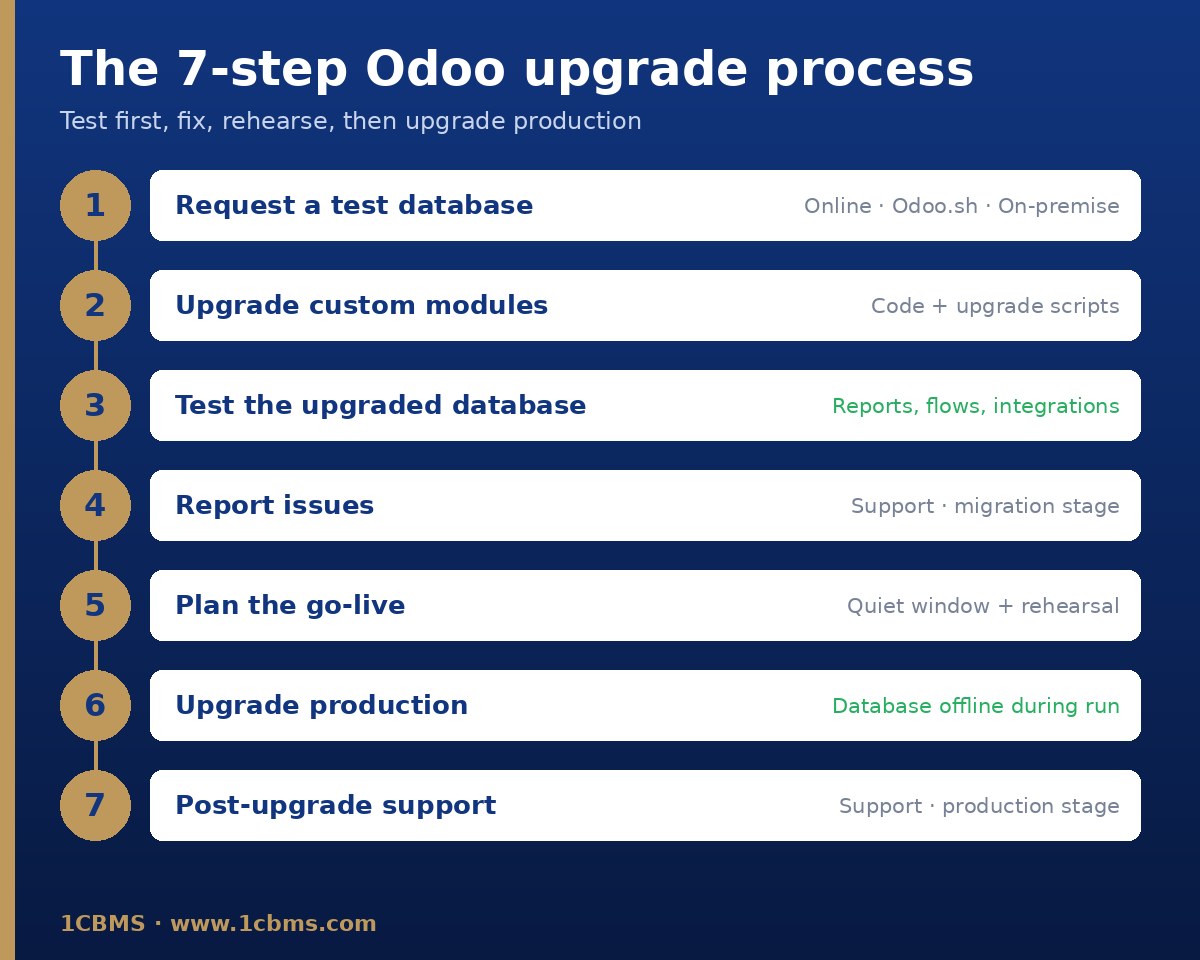
The seven steps of the official process
- Step 1: request an upgraded test database.
- Step 2: upgrade the source code of your custom modules, if you have any.
- Step 3: test the upgraded database thoroughly.
- Step 4: report any problem found during testing to Odoo support, at the migration stage.
- Step 5: when you are confident, plan the production upgrade.
- Step 6: request the production upgrade. The database is unavailable while it runs.
- Step 7: report any problem found after go-live to Odoo support, at the production stage.
Step 1: request an upgraded test database
On Odoo Online, open the database manager, select the database, click Manage and then Upgrade. Choose the target version, enter an email address for notifications, keep the purpose set to Test and confirm. When the process finishes you receive an email with a link to the test database.
On Odoo.sh, open the Upgrade tab and start the upgrade on a staging branch. The latest daily backup of production is sent to the upgrade platform, and the branch enters a special mode in which each new commit restores the upgraded backup and updates your custom modules. The upgrade log is available in the file upgrade.log inside the logs folder of the upgraded staging build.
On-premise, run the official upgrade script on the database server with the test option, the database name and the target version, as given in Odoo's upgrade documentation. The server needs network access to the upgrade servers. The returned copy does not include the filestore, so merge the delivered filestore folder with your production filestore before testing.
After every successful upgrade, an upgrade report is attached to the confirmation email and is also posted in Discuss for administrators. Read it carefully: it lists what changed and what needs attention.
Step 2: upgrade your custom modules
A database that contains custom modules cannot be upgraded until those modules have a version compatible with the target release. Start this work in parallel with the test request.
- Freeze development: stop adding features and accept only bug fixes until the upgrade is done.
- Compare your customisations with the new version and remove anything Odoo now provides as standard.
- Install each module on an empty database of the target version and fix every error and warning.
- Check views, email templates, reports, server and automated actions and computed fields, and add automated tests where useful.
- Write upgrade scripts for data changes: renamed models, fields and external IDs, recovered data from removed models, and recomputed fields.
Upgrade scripts live in the module under a folder named upgrades or migrations, then a folder for the full module version, for example 19.0.2.0. Each file starts with pre-, post- or end-, which decides when it runs: before the module loads, after the module is updated, or after all modules are updated. Each file defines a migrate function that receives the database cursor and the installed version.
On Odoo.sh the platform runs these scripts when it updates your modules. On-premise you restore the upgraded dump and update your modules with odoo-bin and the update option. On Odoo Online custom Python modules cannot be installed, so custom code there must be built with Studio.
Step 3: test the upgraded database
Test databases are neutralised to protect production: scheduled actions are disabled, outgoing mail servers are replaced with a fake one, payment providers and delivery carriers are switched to test mode, and bank synchronisation is turned off. Ask your bank provider for sandbox credentials if you need to test it.
- Check that views active in production are still active after the upgrade.
- Print invoices, quotations, delivery slips and other reports and compare them with production.
- Create and edit records, and test search filters, email templates and exports.
- Check website pages and run your main business flows end to end, for example quote to invoice to payment and purchase to receipt to bill.
- Test external integrations such as APIs and EDI, automated actions, server actions and cross-app workflows.
- Compare key figures with production: stock values, account balances, open receivables and payables.
Give each department a written test script and an owner, and record every result. A test that is not written down did not happen.
Step 4: report problems before going live
Report every difference or error from the test database to Odoo support through the support page, choosing the migration stage. Odoo then fixes the upgrade scripts and you request a new test database to confirm the fix. Repeat until the results are clean.
Step 5: plan the production upgrade
- Choose a time with low activity, because the database is unavailable during the upgrade.
- Request a fresh test database shortly before go-live and run a full rehearsal the day before.
- Inform users of the downtime window and stop data entry before the upgrade starts.
- Take and verify a backup, and prepare a short checklist for the first hours after go-live.
Step 6: request the production upgrade
On Odoo Online, repeat the test request but set the purpose to Production. Once it completes, you cannot return to the previous version.
On Odoo.sh, the production upgrade starts when a new commit is pushed to the production branch, so the upgraded database and your updated custom modules are deployed together. If anything fails, the platform reverts the upgrade automatically, and on success it keeps a backup taken before the upgrade.
On-premise, run the same upgrade script with the production option instead of test. Any change made in production after the database is sent will not appear in the upgraded database. Merge the filestore before you start the new version.
Step 7: support after go-live
Keep key users available during the first days, monitor scheduled actions, emails and integrations as they are re-enabled, and report any issue to Odoo support at the production stage.
What the upgrade service covers for Enterprise customers
With Odoo Enterprise, upgrading to the latest version is included in the subscription, together with support for differences found in the upgraded database. This covers standard applications, Studio customisations while Studio and its subscription are active, and customisations covered by a maintenance-of-customisations subscription.
It does not cover cleaning existing data or configuration, upgrading in-house or third-party modules without a maintenance contract, or training on the new version. Community users are not covered by this service and usually rely on the open-source OpenUpgrade project maintained by the Odoo Community Association.
Practical tips from upgrade projects
- Clean master data before you upgrade: duplicate partners, unused products and archived configuration slow testing down.
- Uninstall modules you no longer use before the test request, so the upgrade has less to convert.
- Upgrade one version jump at a time in your planning, even if the service upgrades directly to the target.
- Keep a list of every customisation with its owner and decide for each one: keep, replace with standard or drop.
- Never skip the rehearsal: most go-live surprises come from data entered after the last test.
How 1CBMS can help
1CBMS plans and runs Odoo upgrade projects end to end: assessing your current version and customisations, migrating custom modules, writing test scripts for each department, managing issues with Odoo support and supervising the production go-live. Contact us through the website to review your upgrade path.