
An ERP holds your prices, salaries, customer lists and bank details in one place. That makes it very useful, and it also means a careless access setup can expose sensitive data or let one person do things that should need a second pair of eyes. Odoo 19 gives you a layered set of controls for this. Used well, they let each person do their job without seeing or changing more than they should.
A note on sources: this guide follows Odoo's official documentation for version 19.0. Menu names and options can change between versions, editions and installed apps, so confirm every step in a test or duplicate database before you apply it to your live system.
Know the user types first
Odoo has three user types. Internal users are staff who work inside the database. Portal users are external people, such as customers or vendors, who view their own records through the portal. Public users are visitors on the website frontend.
The official documentation also describes administrators as internal users with advanced permissions, such as technical features and data export. Treat the administrator role as a privilege for a small number of trusted people, not as a convenience for everyone.
Portal users are handled differently from internal users. Odoo does not let you set app access rights for a portal user. Instead, portal users get preset record rules and restricted menus, and the documentation states that portal users only have read or view access to documents in the database.
Typical portal uses include following and paying orders, downloading and paying invoices, managing payment methods and subscriptions, and keeping addresses up to date.
How Odoo layers access control
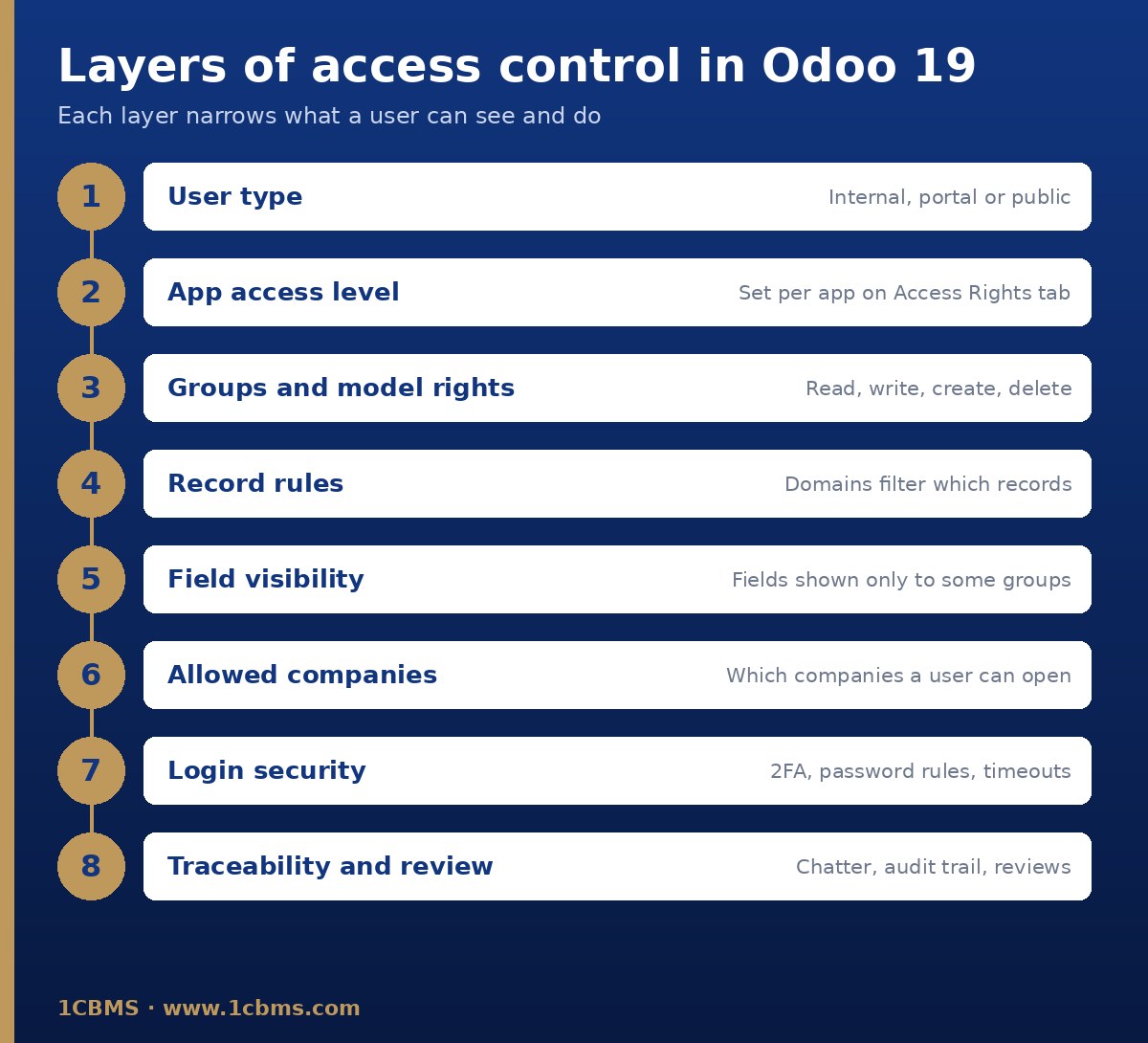
It helps to think of access in Odoo as a stack of filters. The user type sets the broad boundary. App access levels on the user form decide which apps the person can use and how far. Behind those levels sit groups, which carry model-level rights to read, write, create and delete. Record rules then narrow which individual records a group can touch. On top of that you can hide individual fields from certain groups, limit which companies a user can open, and harden the login itself.
Create users and assign app access
To add an internal user, open the Settings app, go to the Users section, click Manage Users and then New. Fill in the form, including the email address.
On the Access Rights tab, choose a level for each application. Only apps installed in the database appear here. Common levels are blank (no access), User: Own Documents, User: All Documents and Administrator, but the exact options vary by app.
Save the user. Odoo sends an invitation to the email address on the form, and the person must accept it to create their login. On the Manage Users screen, the Internal User and Portal User filters help you review each type separately.
Start each new user with the lowest level that lets them do their job, then add access when there is a clear need. Removing access later is always harder than granting it carefully at the start.
Groups, record rules and field security
The levels you choose on the Access Rights tab map to groups behind the scenes. To see them, activate developer mode from the Developer Tools section of the Settings app. You can then open a user's Technical Access Rights tab, which lists the selected groups and the groups added automatically because other groups imply them.
On that tab, green marks a right already provided by another permission, red marks rights that conflict and cannot be active together, and italics mark rights implied by a selected group. Removing a selected group can also change the groups that were added automatically, so review the result after every change.
With developer mode on, groups are listed under Settings, Users & Companies, Groups. Each group form shows its users, inherited groups, menus, views, model-level access rights with read, write, create and delete options, and record rules.
Record rules are row-level filters written as domains, which are filter conditions on the record. Each rule can apply to read, write, create and delete separately. They are how Odoo limits, for example, a salesperson to their own documents.
Odoo's documentation warns that only administrators can change access rights and that careless changes can leave the database with no user able to fix them. It recommends involving an experienced analyst before editing groups or record rules directly. In practice, prefer the standard levels on the Access Rights tab and only touch groups and rules when the standard options truly do not fit.
The Administration section on a user's Access Rights tab controls who can manage the system itself. Choosing Access Rights lets a person manage other users' access, while Settings gives broader configuration access.
Superuser mode, available from the debug menu in developer mode to users with Settings access, bypasses record rules and access rights entirely. Use it only for emergencies and troubleshooting, never for daily work, and log out of the superuser session as soon as you finish.
Sometimes a person should use a record but not see one field on it, such as a cost or a salary figure. In Odoo Studio, field properties include Allow visibility to groups, Forbid visibility to groups and Readonly, so you can restrict who sees or edits a specific field.
Studio can also configure approval rules and adjust security rules. Studio is part of Odoo Enterprise and is not available in Community, and the documentation notes that installing it can affect your subscription plan, so check this before you start.
In Odoo Community, the core security framework of groups, model access rights and record rules is still there. Without Studio, field-level changes and custom rules are usually done by a developer through a custom module.
Multi-company access
One Odoo database can hold several companies. On the user form, the Multi Companies area of the Access Rights tab sets the Allowed Companies the user can work in and the Default Company they land in at login.
Users switch between their allowed companies with the company selector in the top-right header and can tick several companies to work across them at once.
The Company field on a record controls its visibility. A blank Company field makes the record available to all companies, while a specific company limits it to users logged into that company. Documents such as quotations, invoices and vendor bills appear only when you are logged into their company. New products and contacts are shared by default unless you set a company on them.
The documentation warns that incorrect multi-company settings can cause inconsistent behavior, so only experienced administrators should change them. For group structures, decide early which data is shared and which is company-specific, and test inter-company flows before go-live.
Two-factor authentication and password policy
Each user can enable two-factor authentication from My Preferences, on the Security tab, by clicking Enable 2FA. After confirming their password, they scan a QR code with an authenticator app and enter the verification code.
Administrators can enforce two-factor authentication from the Permissions section of the Settings app by ticking Enforce two-factor authentication and choosing Employees only or All users. All users also covers portal users.
If a user loses access to their authenticator, an administrator must deactivate two-factor authentication on that account before the user can log in again. Write this recovery step into your support procedure so it is handled with proper identity checks.
For passwords, install the Password Policy module and set a Minimum Password Length in the Permissions section of Settings. You can also decide whether users may reset their own password from the login page with the Password Reset option in the same section.
Where the session timeout module is installed, group forms gain a Timeouts tab. There you can set inactivity screen locks and session logouts, optionally combined with two-factor authentication.
Traceability: chatter and the accounting audit trail
Chatter on almost every record provides a running history. When a record changes, Odoo logs a note with the change details and a timestamp, and changes made through imports or system actions are credited to OdooBot. Log notes are visible only to internal users.
For accounting, the audit trail tracks changes to fields that affect the books, including the date and time, the user, the type of change, and the previous and new values. It is available under Accounting, Review, Audit Trail.
The optional Restrictive Audit Trail setting, in the Reporting section of the Accounting settings, prevents tracked records from being deleted. They can only be cancelled or archived, which keeps the history intact.
Segregation of duties examples
Segregation of duties means no single person controls a whole sensitive process from start to finish. Odoo's app access levels, groups and approval rules let you split those steps between people.
- The person who creates vendors and vendor bank details should not be the same person who registers and sends payments.
- Purchase staff create requests and orders, while a manager with higher rights approves orders above an agreed limit.
- Warehouse staff validate receipts and deliveries, while inventory adjustments are approved by someone outside the warehouse team.
- Payroll preparation and payroll approval sit with different people, and salary fields are hidden from users who do not need them.
- Only a small IT or admin group holds the Access Rights administration level, and nobody approves changes to their own access.
In smaller companies where full separation is not possible, compensate with review: use the chatter history and the accounting audit trail to check sensitive changes on a regular schedule.
Best practices and periodic review
- Grant the minimum access needed, and document why each user holds each level.
- Keep administrators to a short named list and avoid shared logins.
- Enforce two-factor authentication and a minimum password length.
- Archive users promptly when they leave, and revoke portal access for contacts who no longer need it.
- Test every access change with a test user in a duplicate database before applying it live.
- Review users, groups and allowed companies on a fixed schedule, such as every quarter, and after every reorganization.
To archive a user, select them in Manage Users, open the actions menu and choose Archive. To remove portal access, open the contact, choose Grant portal access from the actions menu and click Revoke Access.
A periodic review should compare each active user against their current job, check who holds administrator or Access Rights levels, confirm allowed companies, and look at recent sensitive changes in the chatter and audit trail. Keep a short record of each review so you can show it to auditors.
How 1CBMS can help
1CBMS designs and implements Odoo 19 access models for companies in Egypt and Iraq. We map your organization and approval policies to users, groups, record rules and multi-company settings, set up two-factor authentication and password rules, build segregation of duties into your daily workflows, test everything in a staging database, and train your team to run regular access reviews. Contact us through www.1cbms.com to review or secure your Odoo database.