
Every Odoo database eventually becomes the single source of truth for a business: invoices, stock levels, payroll inputs, customer history and signed documents all live in it. Losing it, or restoring an incomplete copy, can stop operations for days. Yet many companies only discover the gaps in their backup approach on the day they need it.
This article walks through the essentials of database management, backups and disaster recovery for Odoo 19 Enterprise, with notes on where self-hosted Community installations differ. It is written for business owners, finance managers and IT leads who need a clear picture without reading every technical page.
A note on sources: this guide follows Odoo's official documentation for version 19. Hosting platforms and their options evolve, so confirm each step in a test database and against the current official documentation before relying on it in production.
What a full Odoo backup contains
An Odoo database is not only a PostgreSQL database. Attachments such as uploaded documents, images, and other binary content are stored as files in what Odoo calls the filestore, and Odoo regulates access to them. A backup that contains only the database dump will restore your records but leave attachments missing.
Odoo.sh documentation describes its backups as including the database dump, the filestore (attachments and binary fields), logs, and sessions. That is a useful reference for what a complete backup looks like on any hosting type.
- Database dump: all records, configuration, users, accounting entries and settings.
- Filestore: attachments and binary fields, such as scanned bills, product images and signed PDFs.
- Custom code: on Odoo.sh and on-premise, your custom modules live in your code repository, which needs its own protection.
- Configuration: on-premise, the Odoo configuration file and server setup should be documented and kept safe as well.
When you check a backup, always confirm that both the dump and the filestore are present. A missing filestore is one of the most common reasons a restored database looks fine at first and then shows broken images and missing documents.
Backups by hosting type
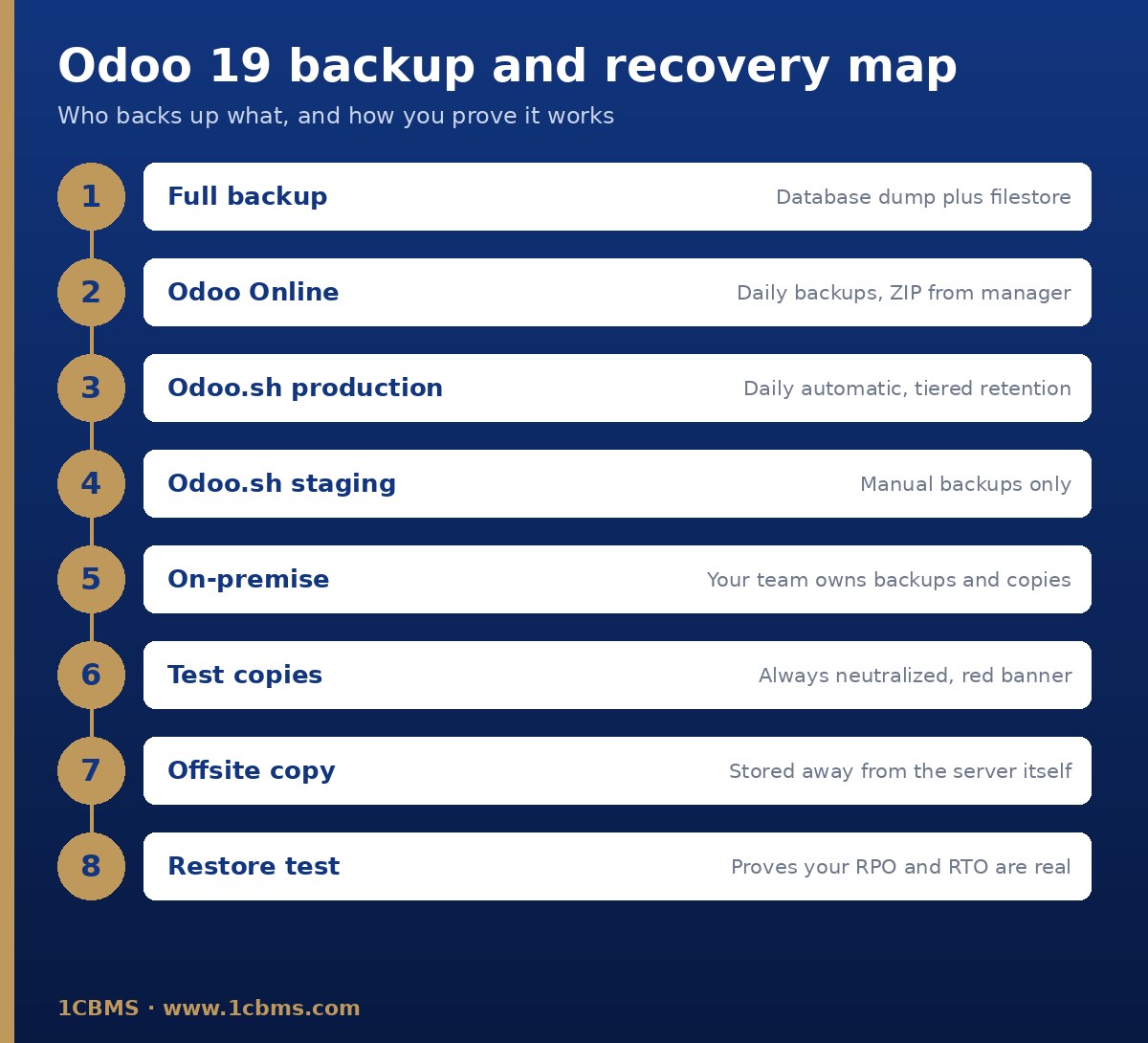
Responsibility for backups depends on where your database runs. Odoo Online and Odoo.sh are hosted by Odoo and include automatic backups, while an on-premise server makes your own team fully responsible. Community edition is typically self-hosted, so the on-premise responsibilities described below apply to it.
Odoo Online: the database manager
On Odoo Online, the official documentation states that databases are backed up daily as per the Odoo Cloud Hosting SLA. You do not need to schedule anything for the platform backups to happen.
The database manager, accessed by signing in as the database administrator, offers a Manage option with the main actions you need for backup and testing work.
- Download Backup produces a ZIP file of the database that you can keep in your own archive.
- If Download Backup is disabled, the database is too large for the manager, and Odoo Support should be contacted for another download method.
- Duplicate creates a copy of the database; the For testing purposes option is enabled by default and disables external actions such as emails, payments and delivery orders.
- Delete removes the database instantly for all users and cannot be undone, so download a backup first.
According to the documentation, duplicates on Odoo Online expire after 15 days and each database can have up to five duplicates. Treat duplicates as short-lived test environments, not as a backup strategy.
Odoo.sh: automatic and manual backups
On Odoo.sh, the production database is backed up automatically every day. The documentation states that seven daily, four weekly and three monthly backups are kept, with the monthly copies held on dedicated backup servers. Restoring or downloading those monthly backups requires contacting Odoo Support.
Staging and development branches are not backed up automatically. Manual backups can be taken for production and staging to capture a specific snapshot, for example before a risky configuration change. They remain available for three days, and the documentation mentions a limit of five manual backups per day. Development databases cannot be backed up manually.
Odoo.sh also creates an automatic backup, flagged as an Update backup, when a merged commit changes module versions or linked Python dependencies. If a merge does not change those, no backup is triggered, so take a manual backup before significant production changes.
- Use the Backups tab of the production branch to review, download or restore backups.
- Restore a production backup into a staging branch when you want to test against real data.
- Use the Import Database feature to bring in archives from the standard database manager, the Odoo Online database manager, the Backups tab or a build's Download DB dump option.
On-premise: your team owns everything
On your own server, nothing is backed up unless you set it up. The official deployment guidance is direct: set up daily backups of your databases and filestore data, and copy them to a remote archiving server that is not accessible from the server itself.
The same guidance warns that the web-based database manager is meant as a development and demo tool and is not designed for production use. It is strongly recommended to disable it on any internet-facing system, and production operations such as automated backups should be handled by the system administrator.
- Protect database management screens with a strong, randomly generated master password set in the configuration file, never the default value.
- Disable database listing on internet-facing servers and use a database filter so each hostname maps to the right database.
- Run the Odoo PostgreSQL user without superuser rights, as the deployment documentation requires.
- Back up the database and the filestore together, so the two stay consistent with each other.
Before major changes such as switching from Community to Enterprise, the official documentation lists backing up the Community database as the first step. Apply the same habit before any upgrade, module installation or data import.
Duplicating databases safely: neutralization
Testing on a copy of production is the safest way to try new workflows, imports or upgrades, but a careless copy can send real emails to customers or trigger real payments. Odoo handles this with neutralized databases, which the documentation defines as non-production databases on which several parameters are deactivated.
Testing databases are always neutralized, including backup copies, duplicates, and Odoo.sh staging and development databases. The documentation's list of what is disabled is explicitly non-exhaustive, and includes the following.
- Scheduled actions, such as automatic subscription invoicing and mass mailings.
- Outgoing emails, which on Odoo.sh staging are caught by a mail catcher instead of being sent.
- Bank synchronization, payment providers and delivery methods.
- IAP tokens, and website visibility to search engines.
A red banner at the top of the screen marks a neutralized database so users can see immediately that they are not in production. Train your team to check for that banner before entering anything, and never remove neutralization from a copy unless you fully understand the consequences.
Retention, offsite copies, RPO and RTO
Platform backups are a strong safety net, but a sound policy also keeps independent copies under your control. For hosted databases, periodically download a full backup and store it in a separate, access-controlled location. For on-premise servers, offsite copies are essential, not optional.
Two simple measures help you decide how much protection you need. The Recovery Point Objective, or RPO, is how much recent data you can afford to lose; a daily backup implies you may lose up to a day of work. The Recovery Time Objective, or RTO, is how long the business can operate without the system while it is being restored.
Agree these targets with management, then check whether your current setup meets them. If losing a full day of sales orders is unacceptable, daily backups alone are not enough, and you should discuss more frequent snapshots or other measures with your hosting provider or IT team.
Restore testing and a practical checklist
A backup is only proven when it has been restored. Schedule a restore test at a regular interval, restore into a neutralized test environment, and confirm that users can log in, recent records are present, and attachments open correctly. Time the process so you know your real RTO.
- Confirm which hosting type you use and who is responsible for backups.
- Verify that backups include both the database dump and the filestore.
- Keep an independent downloaded copy in a separate, secured location.
- Take a manual backup before upgrades, large imports or major configuration changes.
- Use neutralized duplicates or staging branches for all testing.
- Restore a backup into a test environment regularly and record the results.
- Document your RPO and RTO targets and review them each year.
- On-premise, disable the public database manager and protect the master password.
How 1CBMS can help
1CBMS designs and reviews backup and recovery routines for Odoo 19 projects in Egypt and Iraq, across Odoo Online, Odoo.sh and on-premise servers. We can audit your current setup, define realistic RPO and RTO targets with your management, set up neutralized test environments, and run a documented restore test with your team, so that recovery is a rehearsed procedure rather than an emergency.