
Every Odoo project eventually reaches the same question: the standard flow is close, but not quite what the business wants. Should you change a setting, open Odoo Studio, or ask a developer to write a custom module? The answer has long-term consequences for cost, stability and, above all, upgrades.
At 1CBMS we follow a simple rule in every implementation: configuration first, then Studio, then custom modules. Each step down that ladder adds flexibility, but also adds something the business must own and maintain for the life of the system.
A note on sources: this article follows Odoo's official documentation for version 19.0. Menus and options can differ between versions, editions and hosting types, so always confirm behaviour in a test database before changing production.
Layer one: configuration before anything else
Odoo ships with a large number of settings, options and configurable records in each app. Many requests that sound like customisations are in fact standard features that have not been switched on yet, such as additional workflow steps, document layouts, or optional fields that appear once a feature is enabled.
Before writing any specification for Studio or code, walk through the following checks with the key users of the process:
- Review the Settings page of every app involved and read what each option enables.
- Check whether the requirement is covered by configurable records such as stages, tags, teams, operation types or email templates.
- Use the company document layout settings for logos, colours, fonts and footers instead of editing report templates.
- Ask whether the business can adapt its process to the standard flow, because standard flows are tested and upgraded by Odoo.
Configuration is the cheapest layer to own. It is part of the standard product, it is carried forward by the upgrade process, and it does not create a separate codebase that someone has to maintain.
Layer two: what Odoo Studio can do
Odoo's documentation describes Studio as a toolbox used to customise Odoo without coding knowledge. It is opened with the Toggle Studio icon while you are on the app and model you want to change, and closed with the Close button.
According to the official documentation, Studio covers these areas:
- Fields: simple fields such as text, integer, decimal, monetary, date, checkbox, selection, file and image, and relational fields such as Many2One, One2Many, Lines, Many2Many, Tags and related fields.
- Views: form, activity, search, kanban, list, map, calendar, cohort, Gantt, pivot and graph views.
- Models and apps: new models built from scratch, with suggested features such as chatter, pipeline stages, tags, archiving and lines to speed up creation.
- Automation rules: triggers based on value updates, email events, timing conditions, record creation or deletion, UI changes and external webhooks.
- Approval rules: sign-off steps attached to buttons, with approvers defined as users, groups or both. Studio also covers webhooks and security rules.
- PDF reports: editing static text, inserting dynamic fields, tables, columns and images in report templates; note that editing a report header or footer affects all reports.
When you change a view by drag and drop, Studio creates the appropriate inherited view and XPath automatically instead of overwriting the standard view. All Studio work is grouped in a module named studio_customization in your database, which can be exported as a ZIP file and imported into another database.
Studio is an Odoo Enterprise app. The official page also notes that installing Studio on a database on the Standard pricing plan triggers an upsell to the Custom plan, so check the commercial impact with your Odoo account manager before you enable it. Community databases do not include Studio; there, anything beyond configuration is done through technical settings in developer mode or through modules.
Layer two continued: the limits of Studio
Studio is powerful, but the documentation itself flags several limits and risks that every project should respect:
- A field's technical name cannot be changed in Studio after creation, and custom fields must keep at least the x_ prefix, with Studio fields using x_studio_.
- The activity view and conditional blocks in reports can only be changed by editing XML, which requires developer mode.
- Editing standard or inherited views directly is discouraged, because those changes would be reset and lost during updates or module upgrades.
- Odoo strongly recommends duplicating a standard report and editing the copy, and warns that modifying report XML directly may cause issues during upgrades.
- The Execute Code action in automation rules runs Python, and the documentation states that maintenance of custom code is not included in the Standard or Custom plans and incurs additional fees.
- Webhooks should be designed with a developer or technical role, because improperly configured webhooks may disrupt the database.
- Exported Studio customisations can only be imported into a database on the same Odoo version with the same apps and modules installed.
In practice, Studio is ideal for data capture, layout, simple automation and approvals. It becomes risky when it is used to hide real programming inside XML edits or Execute Code actions that nobody documents.
Layer three: when a custom Python module is justified
A custom module is a separate codebase that extends Odoo through models, views, security, data files and Python logic, built with the same framework Odoo uses for its own apps. It is the right tool when the requirement goes beyond what configuration and Studio can express cleanly.
Typical situations where we recommend a custom module include:
- Complex business rules, calculations or constraints that need automated tests and version control.
- Integrations with external systems that require robust error handling, retries and logging.
- Changes to standard business logic, such as how documents are validated or how values are computed, rather than only how they are displayed.
Hosting matters here. The official documentation states that Odoo Online is incompatible with custom modules or modules from the Odoo Apps Store. Custom modules require Odoo.sh or an on-premise installation, so the hosting decision and the customisation strategy must be made together.
Upgrade impact of each option
- Configuration: part of the standard product and migrated by the standard upgrade process.
- Studio: the upgrade services described in Odoo's documentation include the upgrade of all customisations created with the Studio app, as long as Studio is installed and its subscription is active.
- Custom modules: a database with custom modules cannot be upgraded until a version of those modules is available for the target Odoo version, and it is the responsibility of the module's maintainer to make it compatible.
Odoo's guide for upgrading a customised database recommends freezing development, checking which custom features are now provided natively, making each module install cleanly on an empty database of the target version, writing upgrade scripts for renamed models, fields and external identifiers, and rehearsing the upgrade before touching production.
Whatever the layer, test the upgraded database thoroughly. The documentation advises testing business flows end to end, including integrations, automated actions, server actions and reports, and reminds you that test databases are neutralised, with scheduled actions and outgoing emails disabled.
Governance: keeping customisations under control
Customisations rarely fail on day one. They fail years later, when nobody remembers why a field exists or who wrote an automation rule. A light governance model prevents this.
- Keep a customisation register listing every Studio field, view change, automation rule, approval rule, report and custom module, with its owner and business reason.
- Make all changes in a test or staging database first, then move them to production through a controlled process.
- Restrict Studio and developer mode to trained administrators; the documentation itself warns that some developer tools are advanced and carry risks.
- Review the register before each upgrade and retire customisations that the new version covers natively.
- Keep custom module code in version control with tests, and make sure a maintenance arrangement exists for it.
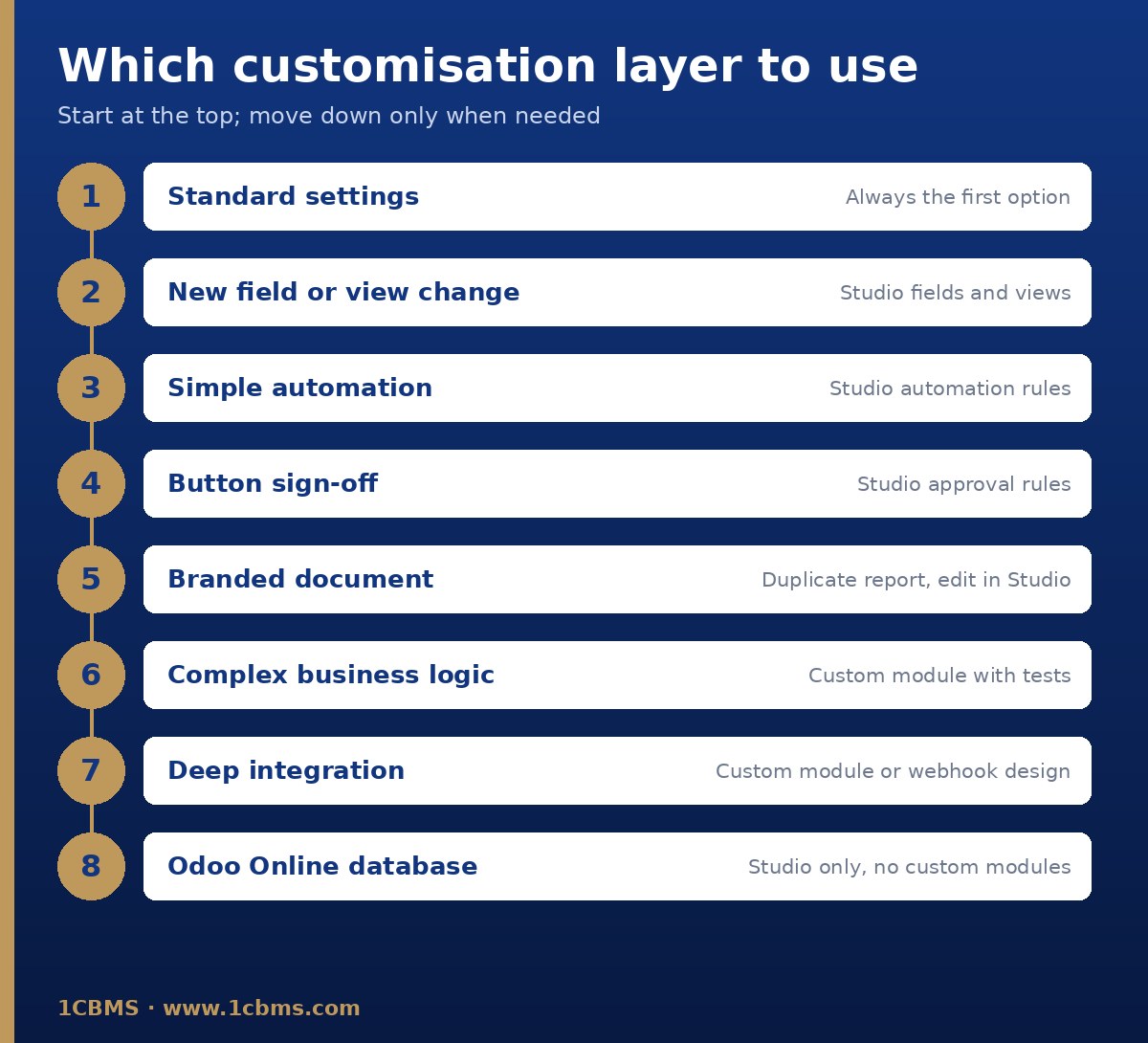
A decision matrix you can apply in workshops
When a new requirement comes up, we work through these questions in order and stop at the first layer that satisfies it.
- Can a standard setting, configurable record or process change meet the need? Use configuration.
- Is it a new field, a view layout change, a simple automation, an approval step or a report wording change? Use Studio.
- Does it need Python logic, automated tests, complex integration or reuse across databases? Use a custom module.
- Is the database on Odoo Online? Stay within configuration and Studio, or plan a move to Odoo.sh or on-premise first.
How 1CBMS can help
1CBMS helps companies in Egypt and Iraq design Odoo 19 Enterprise solutions that stay close to standard. We run fit-gap workshops to separate configuration from real gaps, build disciplined Studio customisations, develop and maintain custom modules when they are truly needed, and prepare customisation registers and upgrade test plans so your system stays maintainable. Contact us through www.1cbms.com to review your current customisations or plan a new implementation.